# Setup 2N intercom for dailing via CoCoS Call Handling (Button.0)

## Introduction

This article explains how to configure a 2N intercom device, such as a 2N IP Audio Kit or 2N IP One, so that a single physical button can call a CoCoS call plan.

## Application

This configuration is used when a 2N intercom must call CoCoS through SIP registration.

Example use cases:

- A visitor presses the intercom button.
- The intercom calls `button.0`.
- CoCoS receives the call.
- CoCoS starts the configured call plan.

## How-To

### Setup the SIP account

<p class="callout info">Note that the sip-account needs to be created in the server first. If using a CoCoS server, find instructions on the page [SIP Intercom Calling via Dial Button (button.0)](https://knowledgebase.cocos.software/books/cocos/page/sip-intercom-calling-via-dial-button-button0 "SIP Intercom Calling via Dial Button (button.0)")</p>

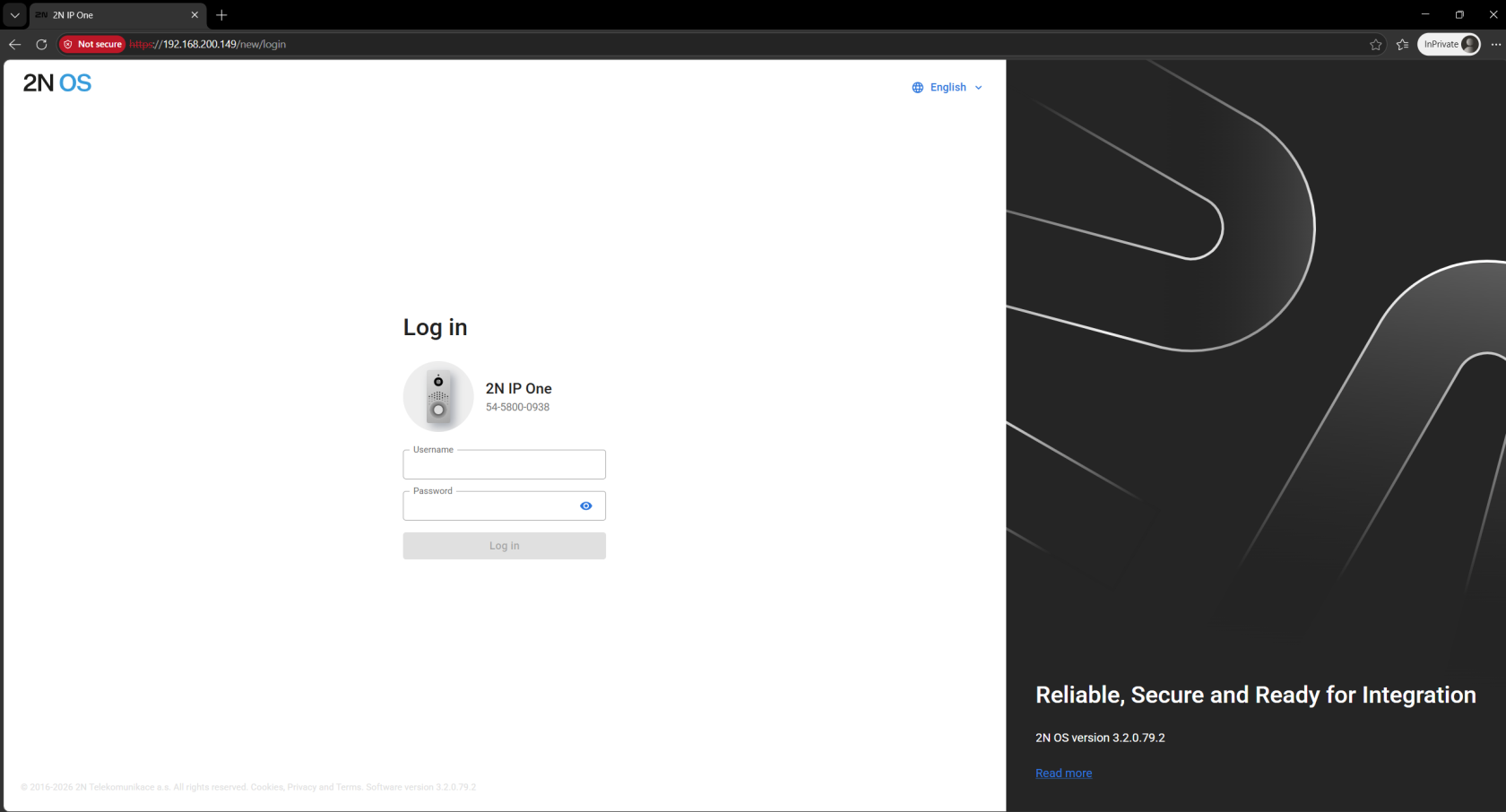
<table border="1" id="bkmrk-open-the-web-browser" style="border-collapse: collapse; width: 100%; height: 1403.82px;"><colgroup><col style="width: 50.0433%;"></col><col style="width: 50.0433%;"></col></colgroup><tbody><tr style="height: 235.67px;"><td style="height: 235.67px;">**Open the web browser and navigate to the web interface of the intercom station.**

The username and password must be provided by the client or Sonexus.

*default user credentials:*

user: admin  
pwd: 2n

</td><td style="height: 235.67px;">[![image.png](https://knowledgebase.cocos.software/uploads/images/gallery/2026-05/scaled-1680-/JpXXprxizgvbA2u4-image.png)](https://knowledgebase.cocos.software/uploads/images/gallery/2026-05/JpXXprxizgvbA2u4-image.png)

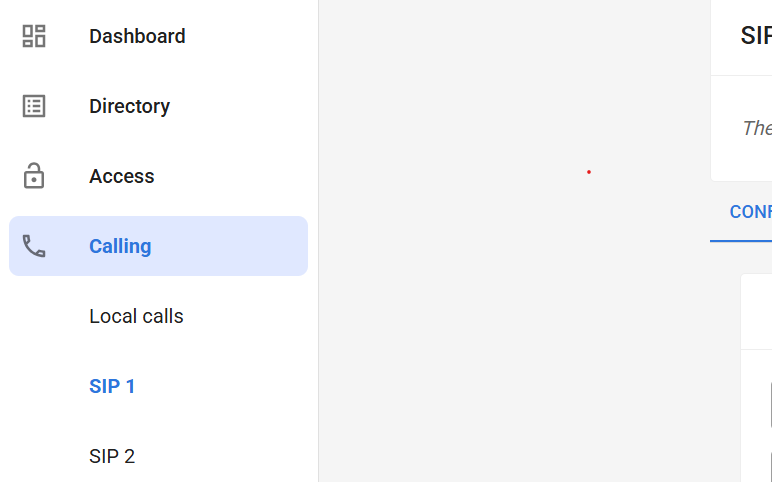
</td></tr><tr style="height: 269.955px;"><td style="height: 269.955px;">In the 2N web interface, go to **Calling**.

</td><td style="height: 269.955px;">[![image.png](https://knowledgebase.cocos.software/uploads/images/gallery/2026-05/scaled-1680-/r45z0aRE5PtvRjnP-image.png)](https://knowledgebase.cocos.software/uploads/images/gallery/2026-05/r45z0aRE5PtvRjnP-image.png)

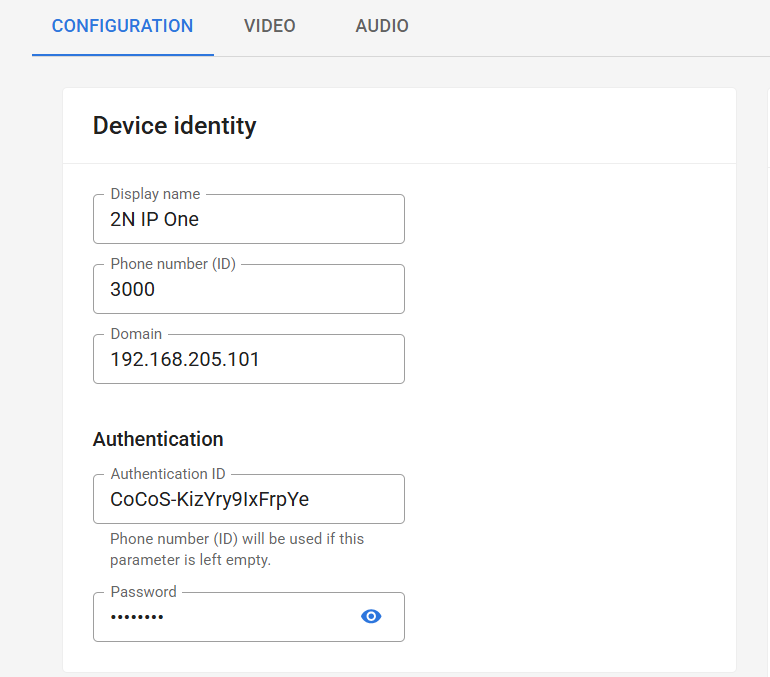
</td></tr><tr style="height: 372.636px;"><td style="height: 372.636px;">Configure **Device identity**

Open **SIP 1**. If another SIP account is used, open **SIP 2**, **SIP 3**, or the correct SIP profile.

Enter the following details for device identity:

- Display Name
- Phone number ( / intercom number / User ID )
- Domain

Enter the following details for authentication:

- Authentication ID
- Password

</td><td style="height: 372.636px;">[![image.png](https://knowledgebase.cocos.software/uploads/images/gallery/2026-05/scaled-1680-/qBSonsk1Zoi8jAUu-image.png)](https://knowledgebase.cocos.software/uploads/images/gallery/2026-05/qBSonsk1Zoi8jAUu-image.png)

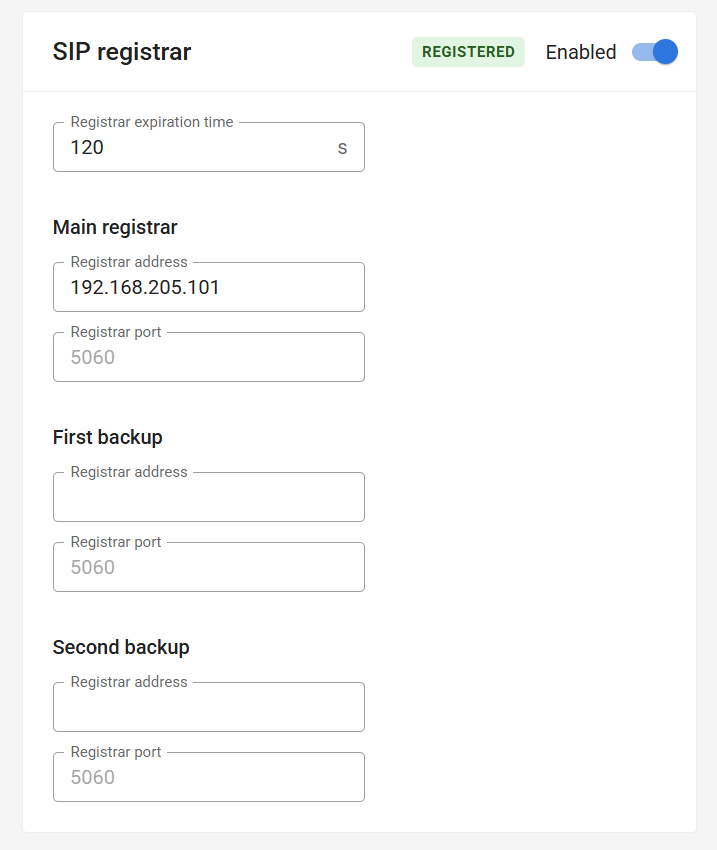
</td></tr><tr style="height: 496.034px;"><td style="height: 496.034px;">Configue **SIP registrar**

Enter the following details for registration:

- Register address ( likely same as: Domain )

</td><td style="height: 496.034px;">[![image.png](https://knowledgebase.cocos.software/uploads/images/gallery/2026-05/scaled-1680-/uHqfpstMztnMKYcW-image.png)](https://knowledgebase.cocos.software/uploads/images/gallery/2026-05/uHqfpstMztnMKYcW-image.png)

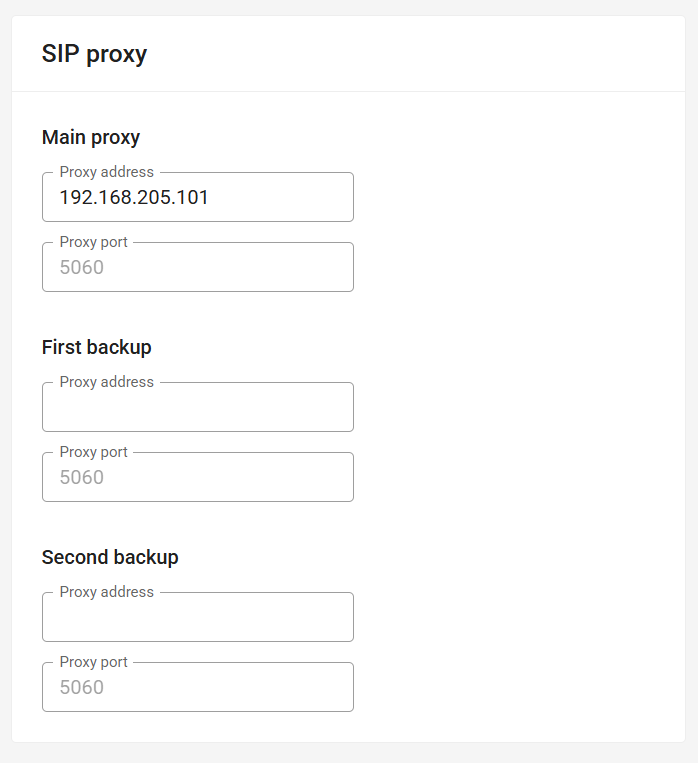
</td></tr><tr style="height: 29.5227px;"><td style="height: 29.5227px;">Configure **<span class="MuiTypography-root MuiTypography-h5 MuiCardHeader-title css-l2ifa0">SIP proxy</span>**

<span class="MuiTypography-root MuiTypography-h5 MuiCardHeader-title css-l2ifa0">Enter the following details for Main proxy:</span>

- Proxy address ( likely same as: Domain )

</td><td style="height: 29.5227px;">[![image.png](https://knowledgebase.cocos.software/uploads/images/gallery/2026-05/scaled-1680-/Yzphnzumv57l5UBC-image.png)](https://knowledgebase.cocos.software/uploads/images/gallery/2026-05/Yzphnzumv57l5UBC-image.png)

</td></tr></tbody></table>

### Callhandling for button 0

<table border="1" id="bkmrk-open-the-web-browser-1" style="border-collapse: collapse; width: 100%; height: 328.306px;"><colgroup><col style="width: 50.0433%;"></col><col style="width: 50.0433%;"></col></colgroup><tbody><tr style="height: 235.67px;"><td style="height: 235.67px;">**Open the web browser and navigate to the web interface of the intercom station.**

The username and password must be provided by the client or Sonexus.

*default user credentials:*

user: admin  
pwd: 2n

</td><td style="height: 235.67px;">[![image.png](https://knowledgebase.cocos.software/uploads/images/gallery/2026-05/scaled-1680-/JpXXprxizgvbA2u4-image.png)](https://knowledgebase.cocos.software/uploads/images/gallery/2026-05/JpXXprxizgvbA2u4-image.png)

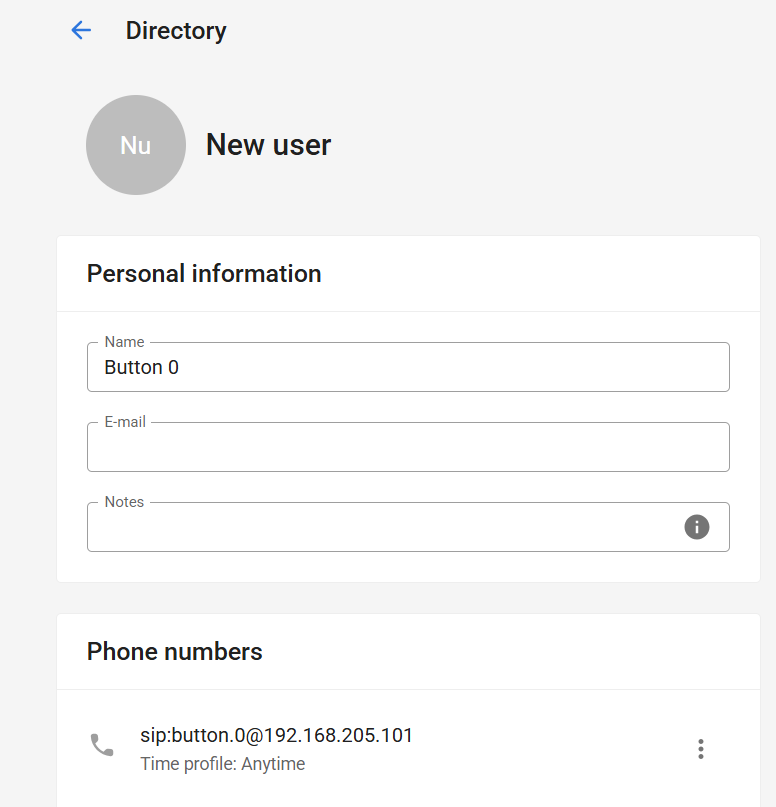
</td></tr><tr style="height: 63.1136px;"><td style="height: 63.1136px;">Navigate to **Directory**

Add a new user or open the existing user used for the call button.

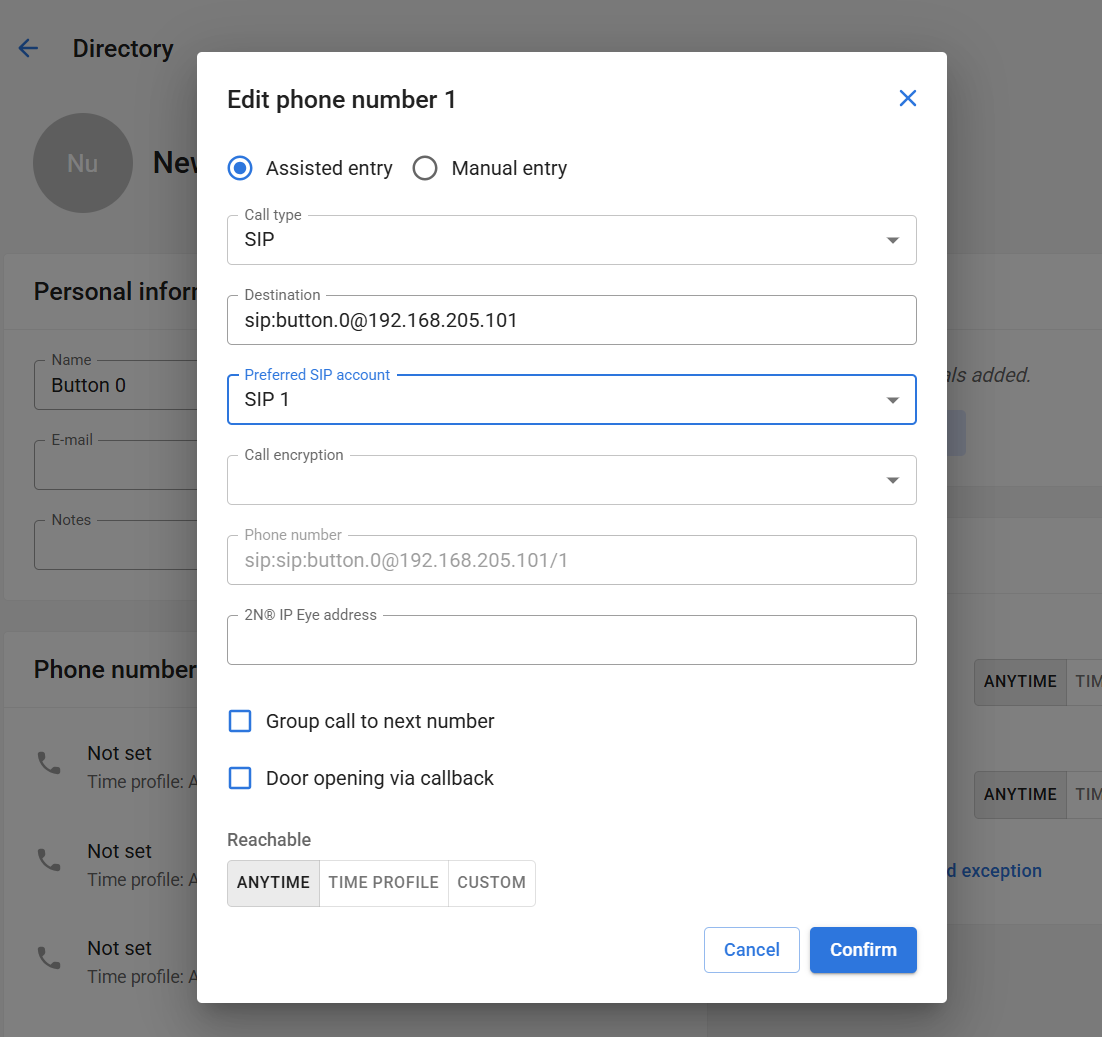
In the user entry, configure the first phone number:

- Set **Call Type** to **SIP**.
- Set **Destination** to `sip:button.0@example-domain`. Replace `example-domain` with the configured SIP domain.
- Save the configuration.

Use the following destination format:

```
sip:button.<number>@<domain>
```

Example:

```
sip:button.0@example-domain
```

Where:

<table border="1" style="border-collapse: collapse; width: 100.203%;"><colgroup><col style="width: 37.5704%;"></col><col style="width: 62.3843%;"></col></colgroup><tbody><tr><td>`button`  
</td><td>The button destination prefix used by CoCoS</td></tr><tr><td>`0`  
</td><td>The button number</td></tr><tr><td>`example-domain`</td><td>The SIP domain to call to. Most likely the same as SIP registration domain.</td></tr></tbody></table>

<p class="callout warning">In older systems button **MUST** be lowercase to prevent issues.</p>

</td><td style="height: 63.1136px;">[![image.png](https://knowledgebase.cocos.software/uploads/images/gallery/2026-05/scaled-1680-/Dhuu9uiVL2wORJT9-image.png)](https://knowledgebase.cocos.software/uploads/images/gallery/2026-05/Dhuu9uiVL2wORJT9-image.png)

[![image.png](https://knowledgebase.cocos.software/uploads/images/gallery/2026-05/scaled-1680-/KRqwbJiKRIvR6Axx-image.png)](https://knowledgebase.cocos.software/uploads/images/gallery/2026-05/KRqwbJiKRIvR6Axx-image.png)
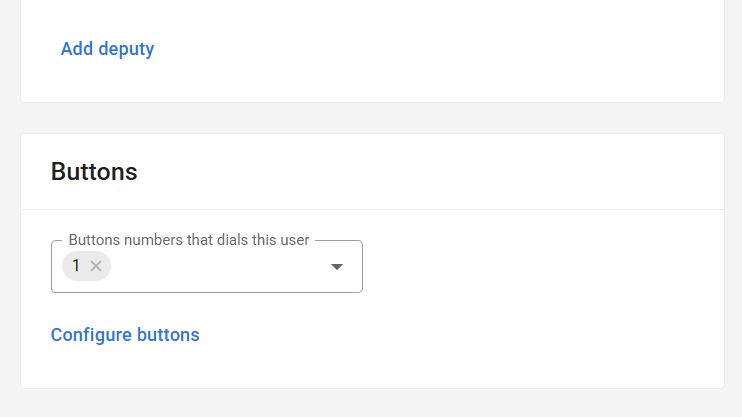
</td></tr><tr style="height: 29.5227px;"><td style="height: 29.5227px;">In the user settings select the physical button that should call CoCoS. For a single-button intercom, this is commonly button `1`.

</td><td style="height: 29.5227px;">[![image.png](https://knowledgebase.cocos.software/uploads/images/gallery/2026-05/scaled-1680-/HCPZuQAjJvNNPlFs-image.png)](https://knowledgebase.cocos.software/uploads/images/gallery/2026-05/HCPZuQAjJvNNPlFs-image.png)

</td></tr></tbody></table>

### Validation

After completing the configuration, test the full call flow.

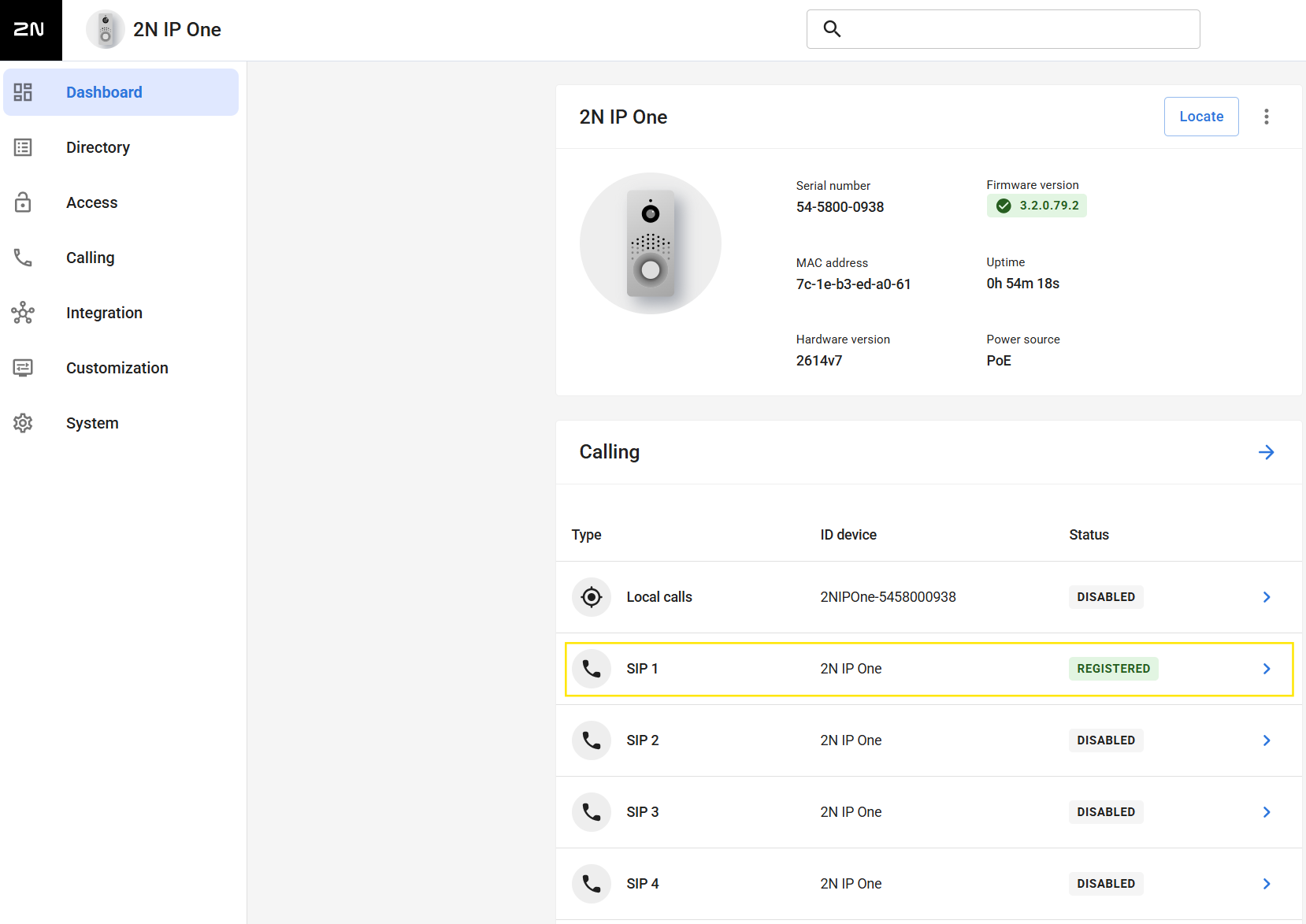
<table border="1" id="bkmrk-confirm-that-the-sip" style="border-collapse: collapse; width: 100%;"><colgroup><col style="width: 50%;"></col><col style="width: 50%;"></col></colgroup><tbody><tr><td>Confirm that the SIP account is registered in the 2N interface.</td><td>[![image.png](https://knowledgebase.cocos.software/uploads/images/gallery/2026-05/scaled-1680-/yMJu8CYMt2qCJBov-image.png)](https://knowledgebase.cocos.software/uploads/images/gallery/2026-05/yMJu8CYMt2qCJBov-image.png)

</td></tr></tbody></table>

## Troubleshooting

### The SIP Account Does Not Register

Possible causes:

- The SIP domain is incorrect.
- The register address is incorrect.
- The authentication ID is incorrect.
- The password is incorrect.
- The SIP account does not exist on the server.

How to resolve:

- See: [https://knowledgebase.cocos.software/books/cocos/page/intercom-not-registering-device-not-available](https://knowledgebase.cocos.software/books/cocos/page/intercom-not-registering-device-not-available)

### Pressing the Button Does Nothing

Possible causes:

- The physical button is not linked to the correct directory user.
- The directory user has no SIP destination.
- The wrong button number is used.
- The configuration was not saved.

How to resolve:

1. Open the directory user.
2. Confirm that the SIP destination is configured.
3. Open the button configuration.
4. Confirm that the physical button is linked to the correct user.
5. Save the configuration.
6. Test the button again.

## References

- [Configure button action ( like: dial number )](https://knowledgebase.cocos.software/books/cocos/page/how-to-configure-callhandling-based-on-a-received-buttonpress-from-an-intercom)
- [Configure DTMF action](https://knowledgebase.cocos.software/books/cocos/page/how-to-configure-dtmf-action)
- [Intercom Not Registering](https://knowledgebase.cocos.software/books/cocos/page/intercom-not-registering-device-not-available)