| Step 1: If not installed/available: Download the "*Pololu Maestro Control Center*" from [https://www.pololu.com/file/0J266/maestro-windows-241004.zip](https://www.pololu.com/file/0J266/maestro-windows-241004.zip) onto your PC and install it. Use the \[ Next > \] button a couple of times to start the installation. Most options are configured correctly by default and don't require adjustments. | [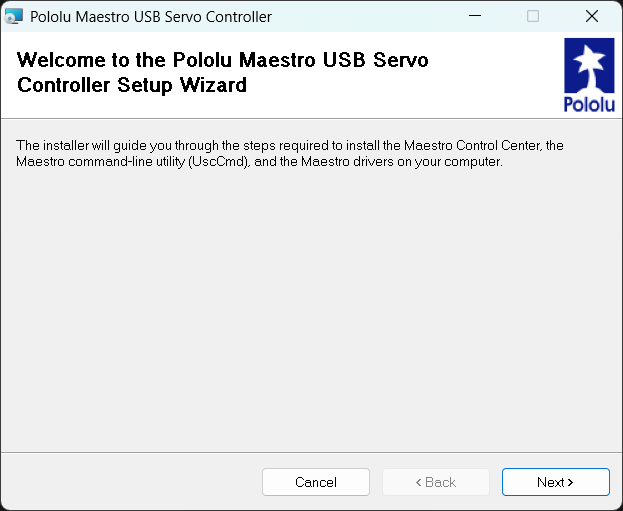](https://knowledgebase.cocos.software/uploads/images/gallery/2026-04/sbus1vBv7xsuRxct-image.png) |
| Wait fot the Pololu Maestro USB Servo Controller to be installed. | [](https://knowledgebase.cocos.software/uploads/images/gallery/2026-04/MMeolo43HofmVLkG-image.png) |
| Hit the \[ Close \] button once the installation is completed. | [](https://knowledgebase.cocos.software/uploads/images/gallery/2026-04/nnVA2CnhiZmwXQew-image.png) |
| Step 2: Open the Pololu Maestro Control Center and connect the Pololu Maestro Controller to your PC and read/check the settings from the connected device. Also, check the settings for "*Serial Mode*" and "*Device Number*" in the tab "*Serial Settings*". The screenshot at the right is just an example; the settings may vary depending on the project. | [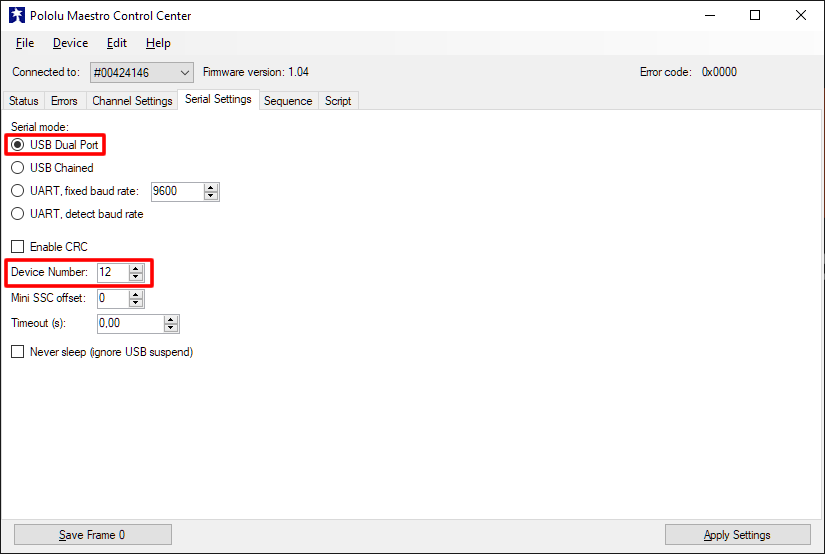](https://knowledgebase.cocos.software/uploads/images/gallery/2026-04/vgCQxjpTpZGwiyen-image.png) |
| If available, use the option "*File*" -> "*Open settings file...*" in order to apply an existing configuration to the Pololu Maestro Controller. | 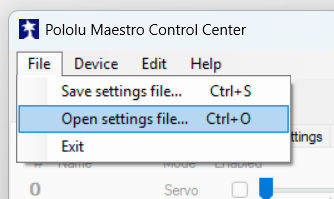 |
| Use the button \[ Apply Settings \] to write the changes to the Pololu Maestro Controller. | [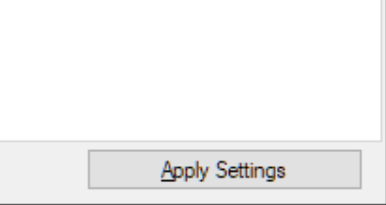](https://knowledgebase.cocos.software/uploads/images/gallery/2026-04/omFA17EOVp5HdeE5-image.png) |
**Friendly reminder:** When changes/adjustments where nessecary to get a Pololu working for a specific project, based on an existing settings file, always save/export the current settings and document/store it in the project where it belongs.
## References **Configuration example(s):** - CoCoS Celpanel - [https://manuals.concera.com/books/celpaneel-intercom/page/aansluitingen](https://manuals.concera.com/books/celpaneel-intercom/page/aansluitingen) - Sealink Imager - [https://manuals.concera.com/books/sealink-imager/page/vcxx-hardware-configuration](https://manuals.concera.com/books/sealink-imager/page/vcxx-hardware-configuration) **Related Git issue(s):** - [https://github.com/Concera-Software/SealinkImager/issues/30](https://github.com/Concera-Software/SealinkImager/issues/30)