
Incorrect aspect ration BeeTronics screen
Symptoms
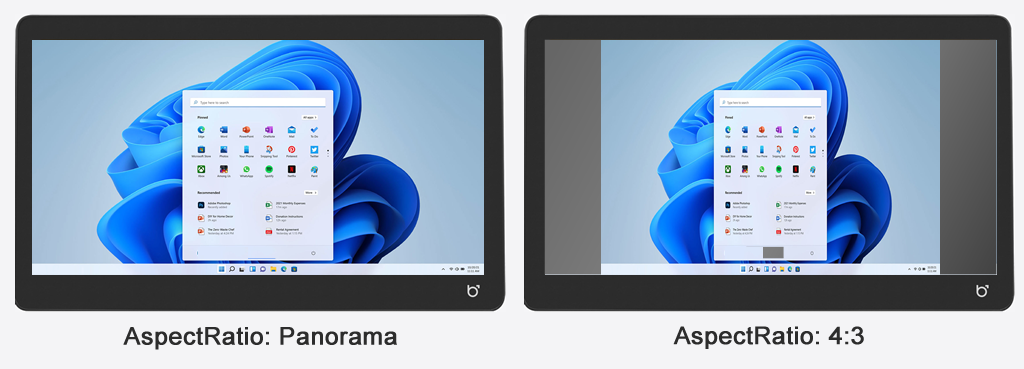
A BeeTronics display (for example a BeeTronics 10 inch touchscreen or BeeTronics 13 inch touchscreen) is displaying the interface "distorted", like in the right picture below. Also, touch actions don't work properly/touch actions seems to happen on incorrect locations.
Details
When logging in remotely or checking the screen resolution, the correct resolution is displayed, but the displayed image itself is incorrect. This issue can be caused by the "AspectRatio" setting on the BeeTronics display, which contains an incorrect value.
How to fix
On the back of the BeeTronics display (mounted on the wall), several buttons that allow to change settings. These buttons are [Menu], [Auto], [+], and [-]. To change the "AspectRatio" setting, execute the following steps:
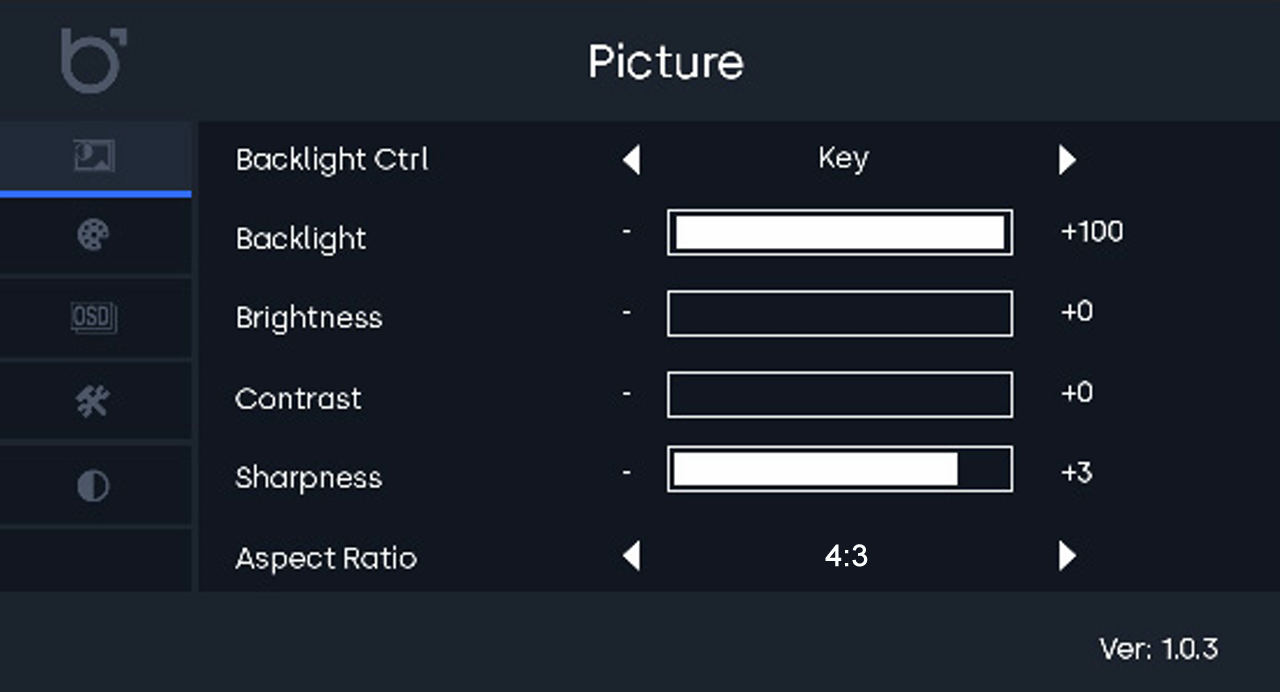
| Step 1: Press the [Menu] button: A settings menu will now appear on the screen. |
|
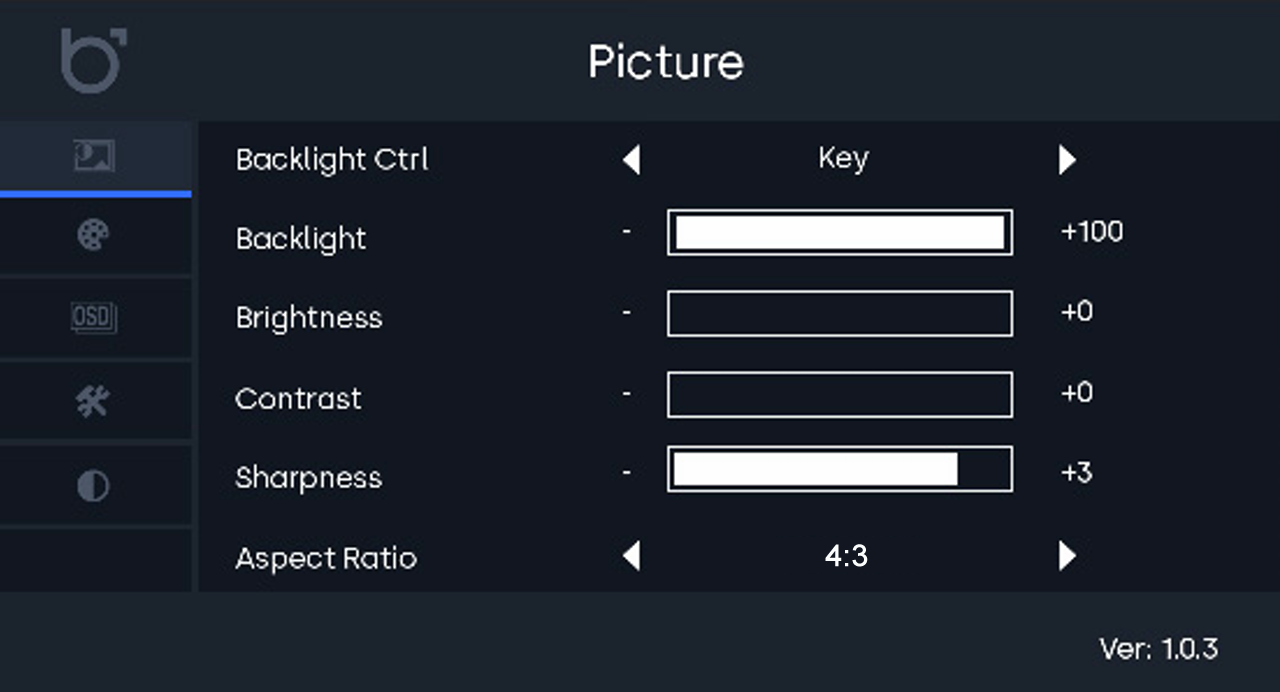
| Step 2: Press the [Menu] button again: The 'Picture' menu will now open/be activated. |
|
| Step 3: Press the [+] button five times to reach the 'AspectRatio' option. |
|
|
Step 4: |
|
|
Step 5: |
|
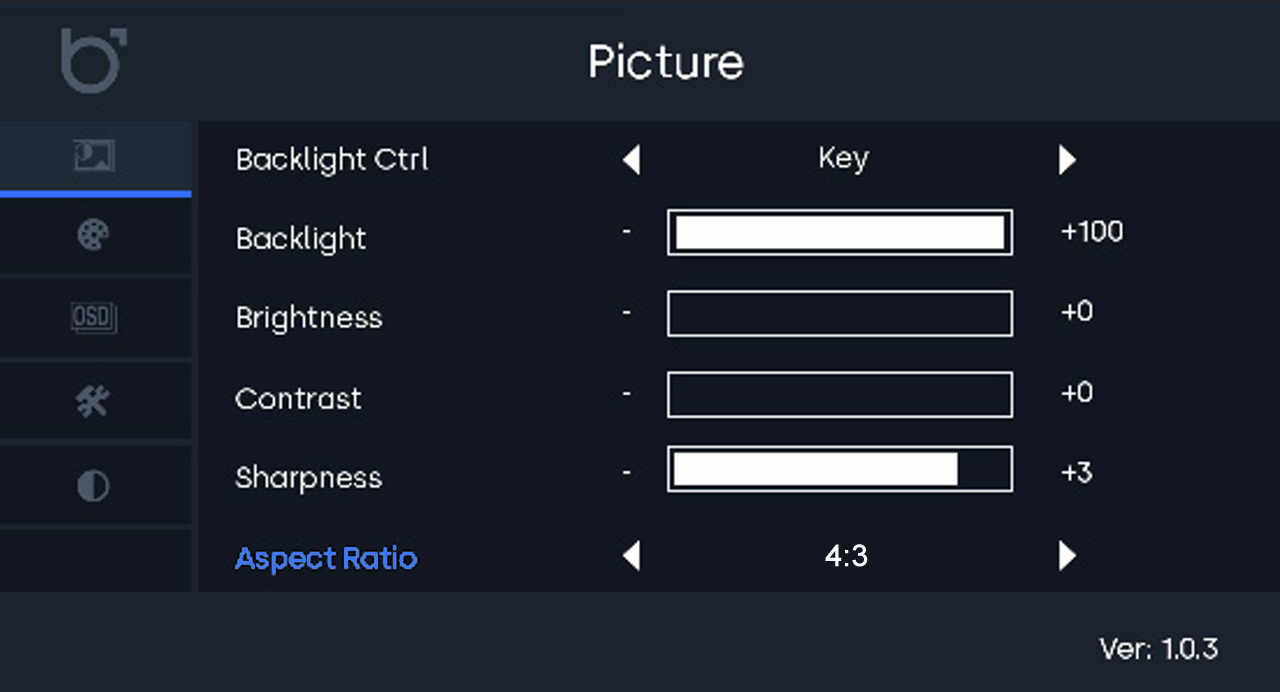
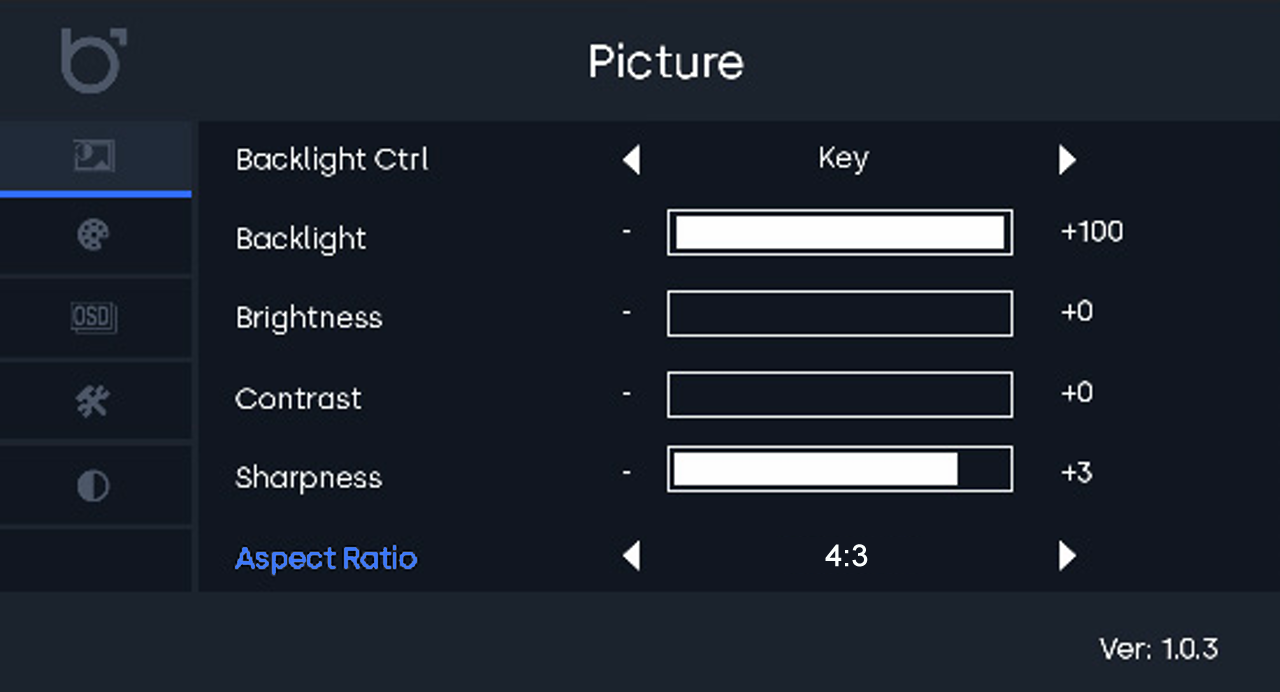
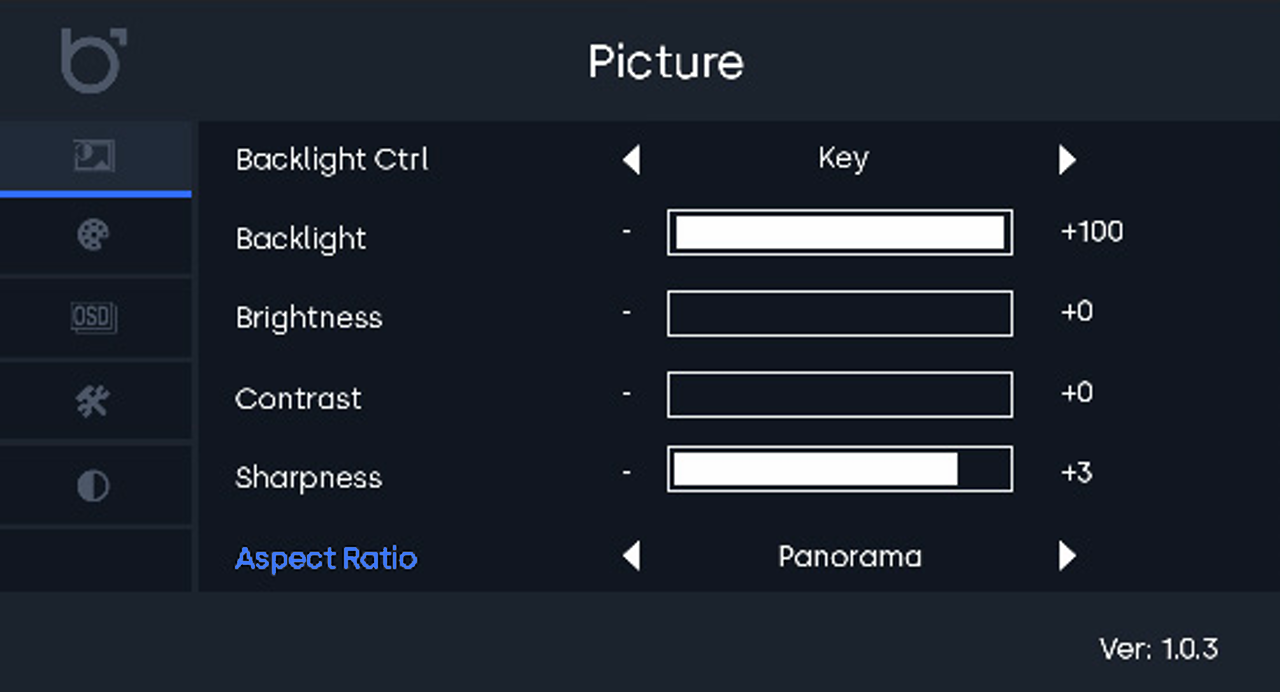
After this, the image should be displayed correctly again, it should no longer appear "distorted," and touch actions are working properly again.
Use the [Auto] button to close the menu (it will also close automatically after a certain time).
References
- BeeTronics User Manual - https://www.beetronics.nl/questions/download-file/7-110-1