Securely Connect WinCC 8.0 to a S7-1200 or S7-1500 with firmware v4.0 or higher using OMS+
This manual describes the steps to take to setup communication between S7
Install SCADA Export Tool
The scada export tool allows you to export connection data (certificate and – if wanted – tags). Install this tool before proceeding to the next part of the manual.
Download the appropriate version for your Tia Portal installation and install the tool.
Note! It's required the have Tia Portal installed to use this manual.
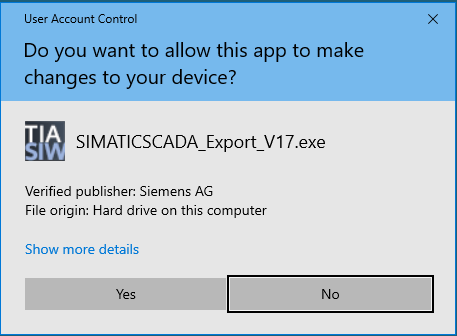
| Run the installer matching you Tia Portal version. |
|
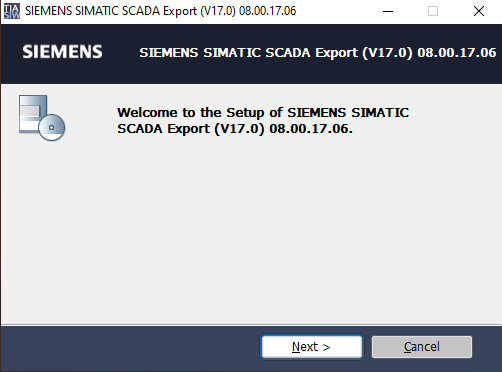
| Just click Next |
|
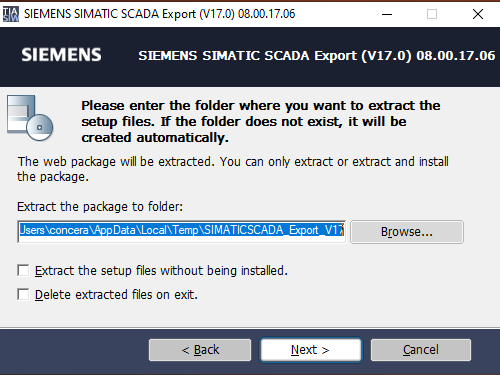
| Keep all settings default and click Next |
|
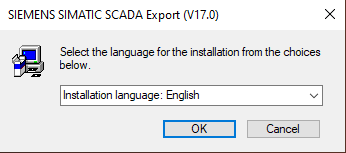
| Select the desired language |
|
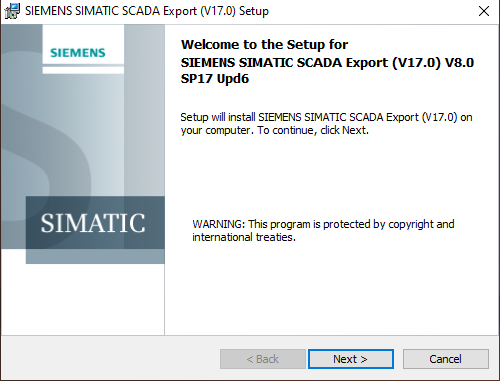
| Just click Next |
|
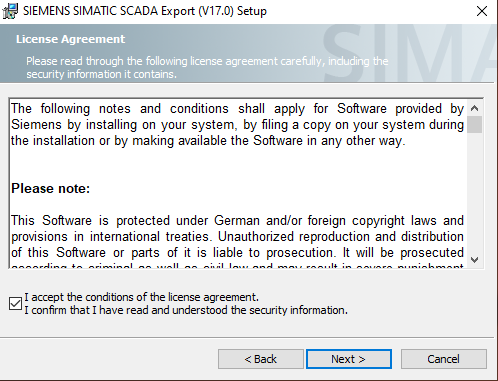
| Confirm the License agreement and click Next |
|
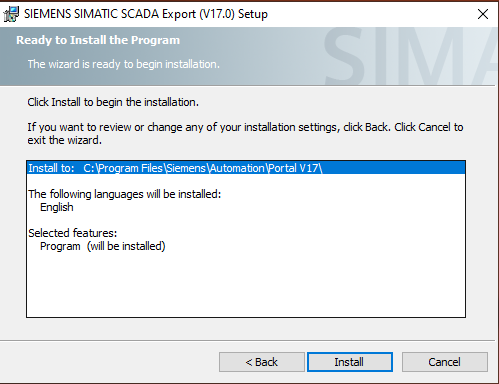
| Confirm the installation setting summary. |
|
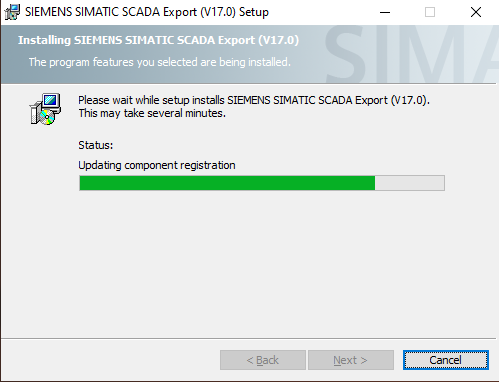
| Wait for the application to install |
|
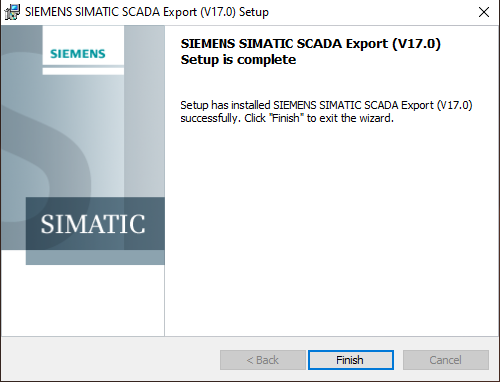
| Finish the installation |
|
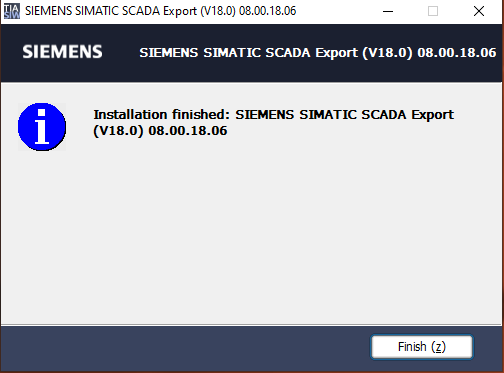
| Somehow Siemens requires another finish confirmation. |
|
Configure the PLC
Creating a new project
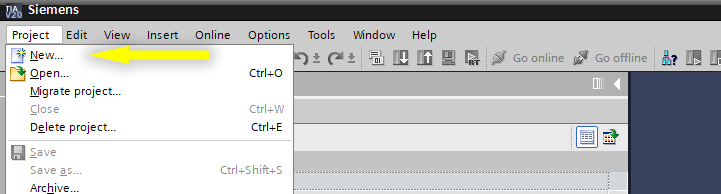
| Create a new project from the Project menu in Tia Portal |
|
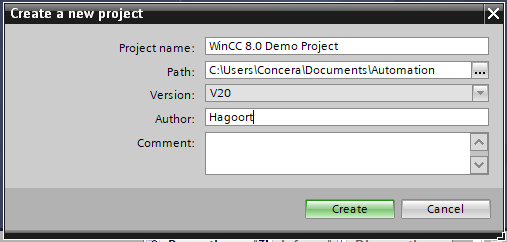
| Name the project and click "Create" |
|
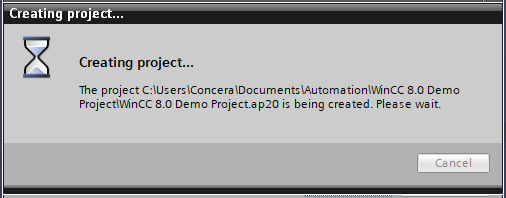
| Wait until the project is created. |
|
Add a new PLC project with secure communication
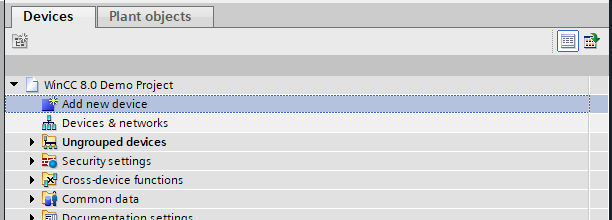
| Add a new PLC device. |
|
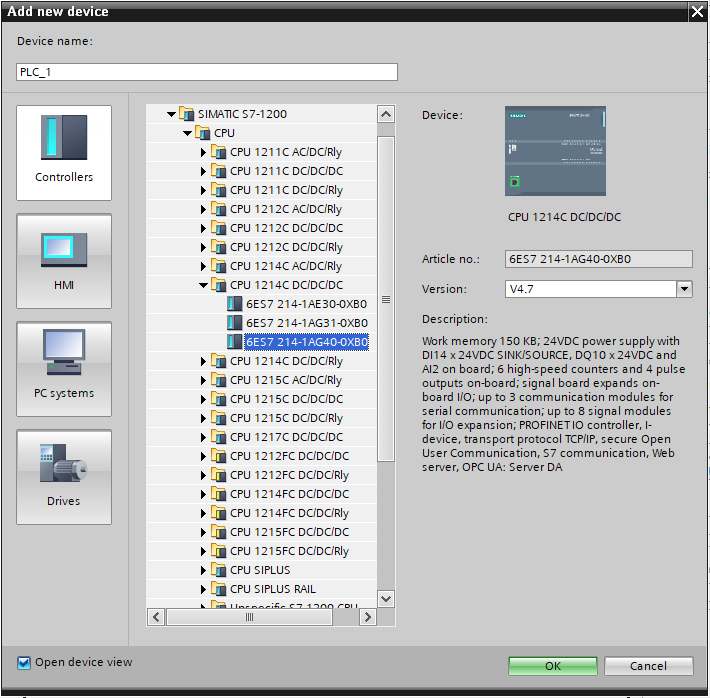
| Select you PLC and click OK |
|
|
|