
How-to configure callHandling based on a received buttonpress from an intercom
Question or Case description
This guide describes how to configure CoCoS in order to handle a buttonpress, received from an intercom-station. Based on the received buttonPress, a dialplan/dialrule can be created, use to specify which contact (relation) needs to be called, for example based on a schedule.
How To
Prerequisites
AnOn this page, we'll only cover the configuration in CoCoS and therefore assume that the intercom-station can beis configured correctly, in order to send a button-press to CoCoS.
FOR A SINGLE INTERCOM STATION: |
|
| Step 1: Navigate to "Intercom / Intercom stations" or "Intercom / configurations" and open the intercom station for which you want to handle a received buttonpress. | |
| Step 2: Navigate to the "Call-Handling" tab, and click on the new dialplan action button under "2. Actions for this station". |
|
|
Step 3: Fill in the field for the diaplan action. In section "1. How is the call/action initiated?", choose the following options:
|
|
|
Step 4: In section "2. Which action needs to be taken?", choose the following options:
|
|
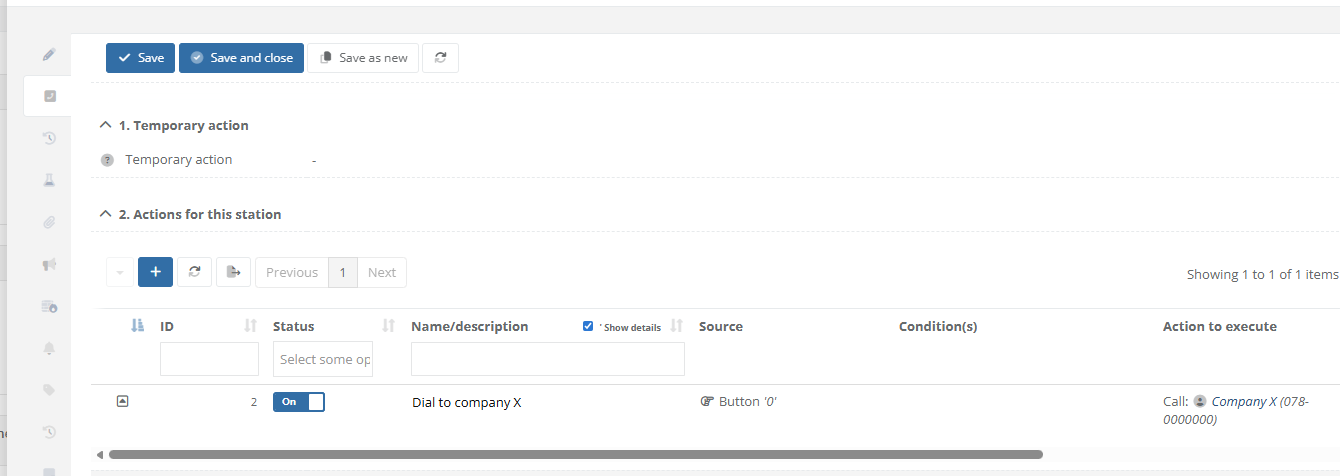
| Step 5: Save the dialplan action. Tab "Call-Handling" at the intercom station will now display that "Company X" is called when button 0 is pressed at the intercom station. |
|
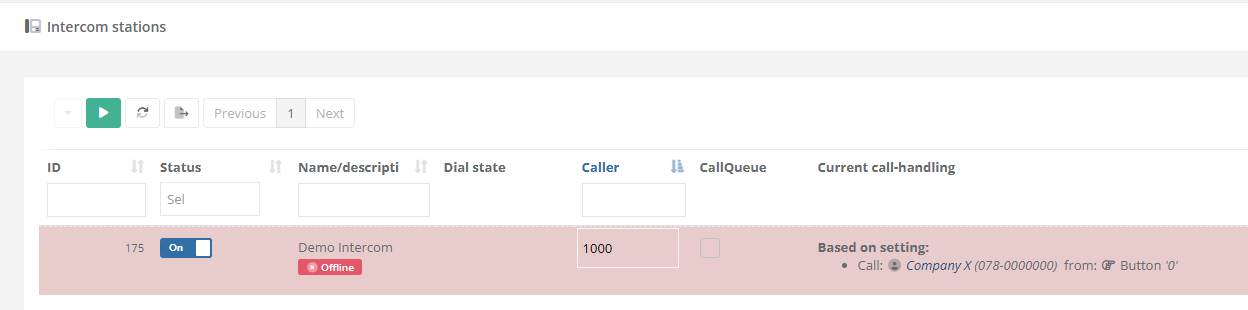
| Step 6: After saving and closing the Intercom Station, the list with all devices will display the configuration in column "Current call-handling". The custom action will be dispayed wuith the text "Based on setting". |
|
FOR MULTIPLE INTERCOM STATIONS:
|
|
|
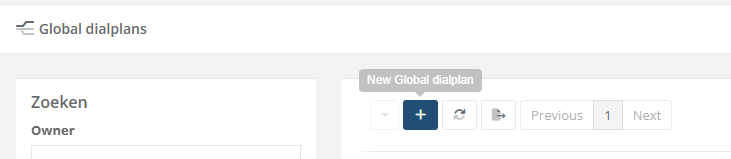
When no global dialplan is available yet, create and configure a new one. Otherwise, continue directly with step 6. |
|
|
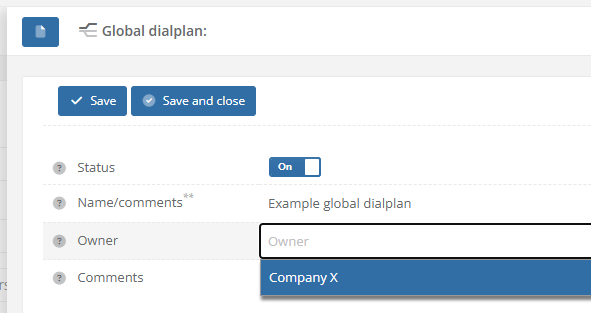
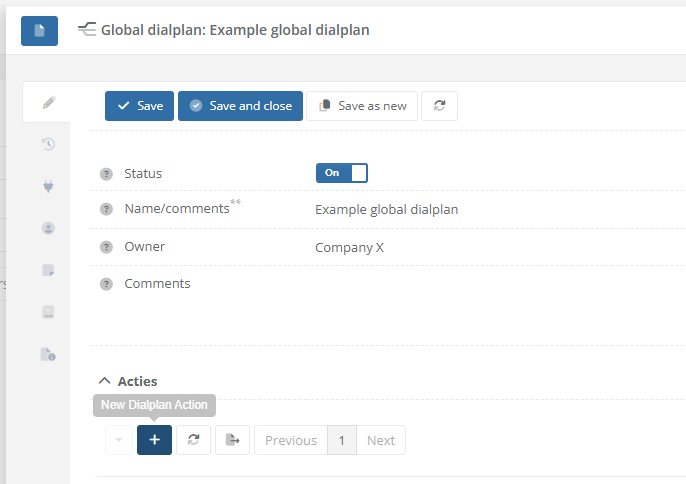
Step 2: Create a new dialplan by giving it a name. Optionally, select the owner/relation is belongs to. |
|
|
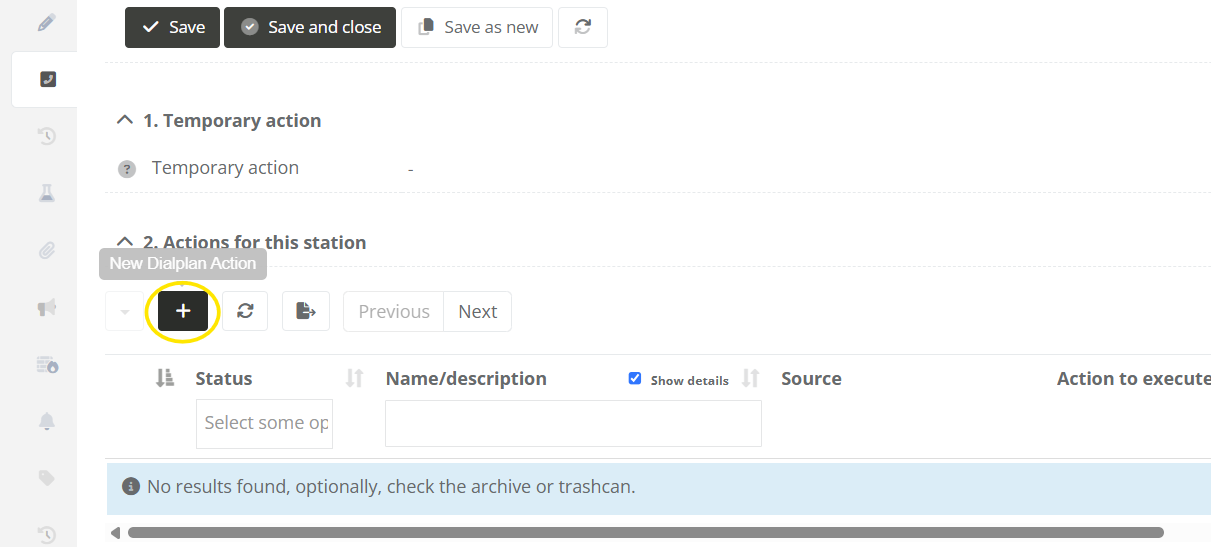
Step 3: After saving the Global dialplan. Use the [ + ] sign in the list with actions in order to add a new new rule. |
|
|
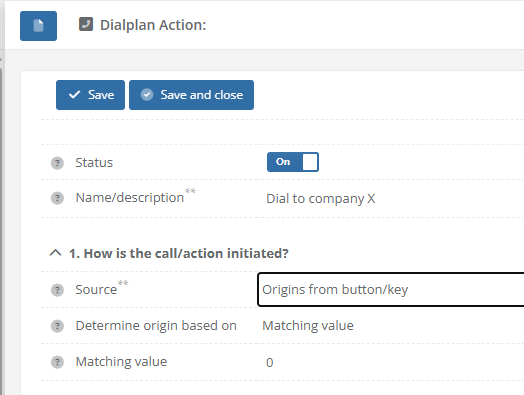
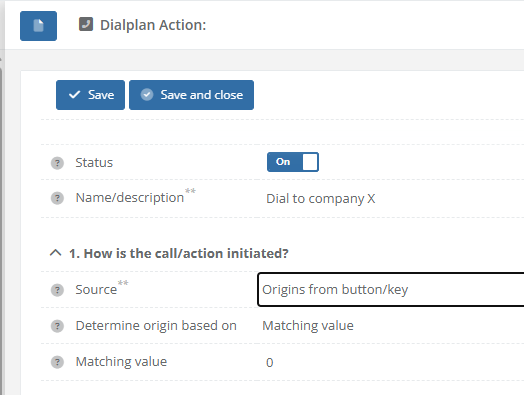
Step 4: Fill in the field for the diaplan action. In section "1. How is the call/action initiated?", choose the following options:
|
|
|
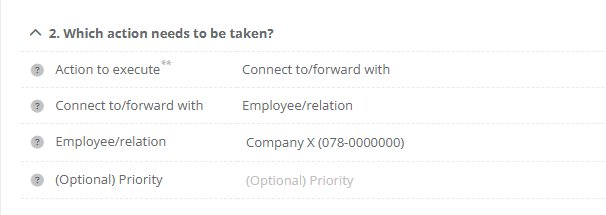
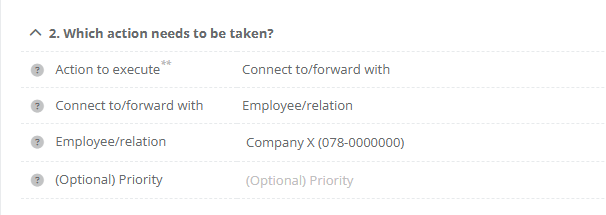
Step 5: In section "2. Which action needs to be taken?", choose the following options:
|
|
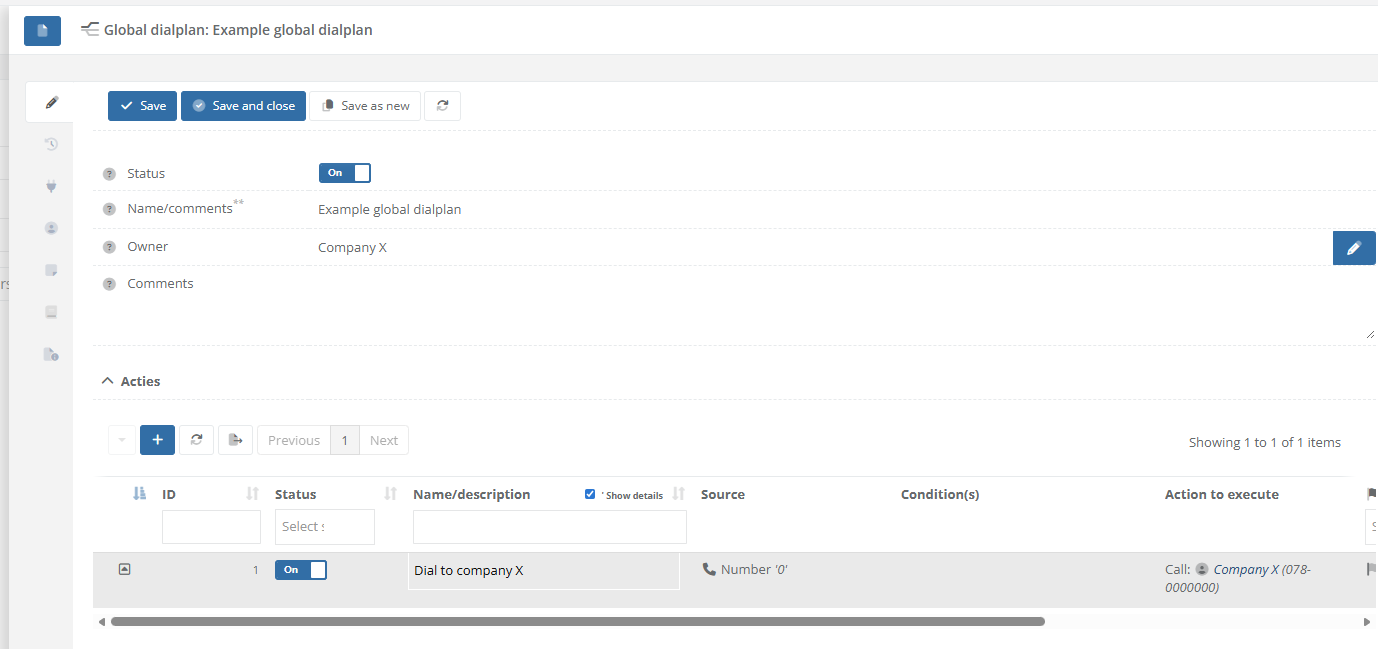
| Step 5: Save the dialplan action. The list with "Actions" at the global dialplan will now display that "Company X" is called when button 0 is pressed. |
|
|
Step 6: Navigate to "Intercom / Intercom stations" or "Intercom / configurations" and open the intercom station for which you want to handle a received buttonpress. |
|
|
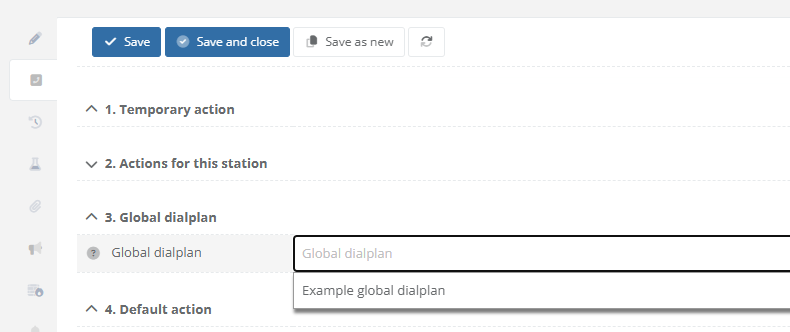
Step 7: Navigate to the "Call-Handling" tab. In section "3. Global dialplan", select which the dialplan to use. |
 |
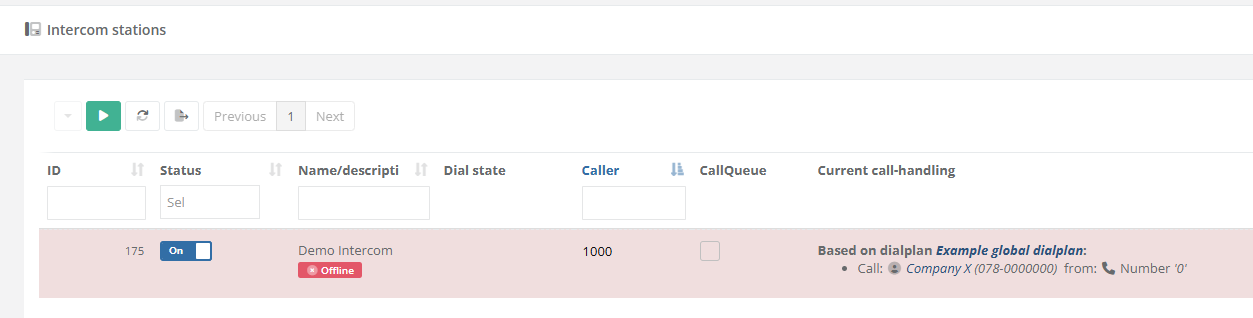
Step 8: After saving and closing the Intercom Station, the list with all devices will display the configuration in column "Current call-handling". The custom action will be dispayed wuith the text "Based on dialplan". |
|
References
Describe where to find external answers or extra information's