
SIP Intercom Appears Registered But Is Not Available in CoCoS
Symptoms
Your intercom looks like it’s working and says it’s registered, but in CoCoS it still shows as error, disconnected, or no status.
Related symptoms
-
You try to call the intercom, but the call fails.
- Calls to the intercom fail for the following reason: "Could not initiate call from 'A' to 'B' because extension 'B' is not available for calls.".
-
The intercom gives an error in CoCoS, even though it (the intercom itself) says it’s registered.
Details
This issue occurs when the SIP transport protocol configured on the intercom does not match the one expected by CoCoS. The intercom may still display "Registered", especially when using a different transport like UDP, TCP, or TLS, but it will not function correctly.
Log output (in Call History)
Could not initiate call from '1000' to '1001' because extension '1001' is not available for calls.

How to fix/prevent it: Check if device 'Nevenpost 2' is turned on, has a network connection, and is correctly configured to connect with the PBX device 'Asterisk'.

Extension '1001' linked to CoCoS device 'Nevenpost 2' is not available, so could not be called / initate a call.
Cause
Sometimes the intercom thinks it’s connected, but it actually isn’t talking to CoCoS the right way.
This usually happens when a setting called the Transport Protocol is not set correctly.
This setting controls how the intercom connects to CoCoS (like speaking different languages — the intercom and CoCoS need to speak the same one).
Even though the intercom says "Registered", CoCoS doesn't actually recognize it unless this setting matches.
Solution / Resolution / How To
For Commend Symponey devices (like: ID5, OD1, etc.)
|
Open the webinterface of the intercom, and login.
This is the control panel where you can change settings. |
default user credentials: user: admin |
|
Click on SIP in the menu, then go to SIP Settings. |
|
|
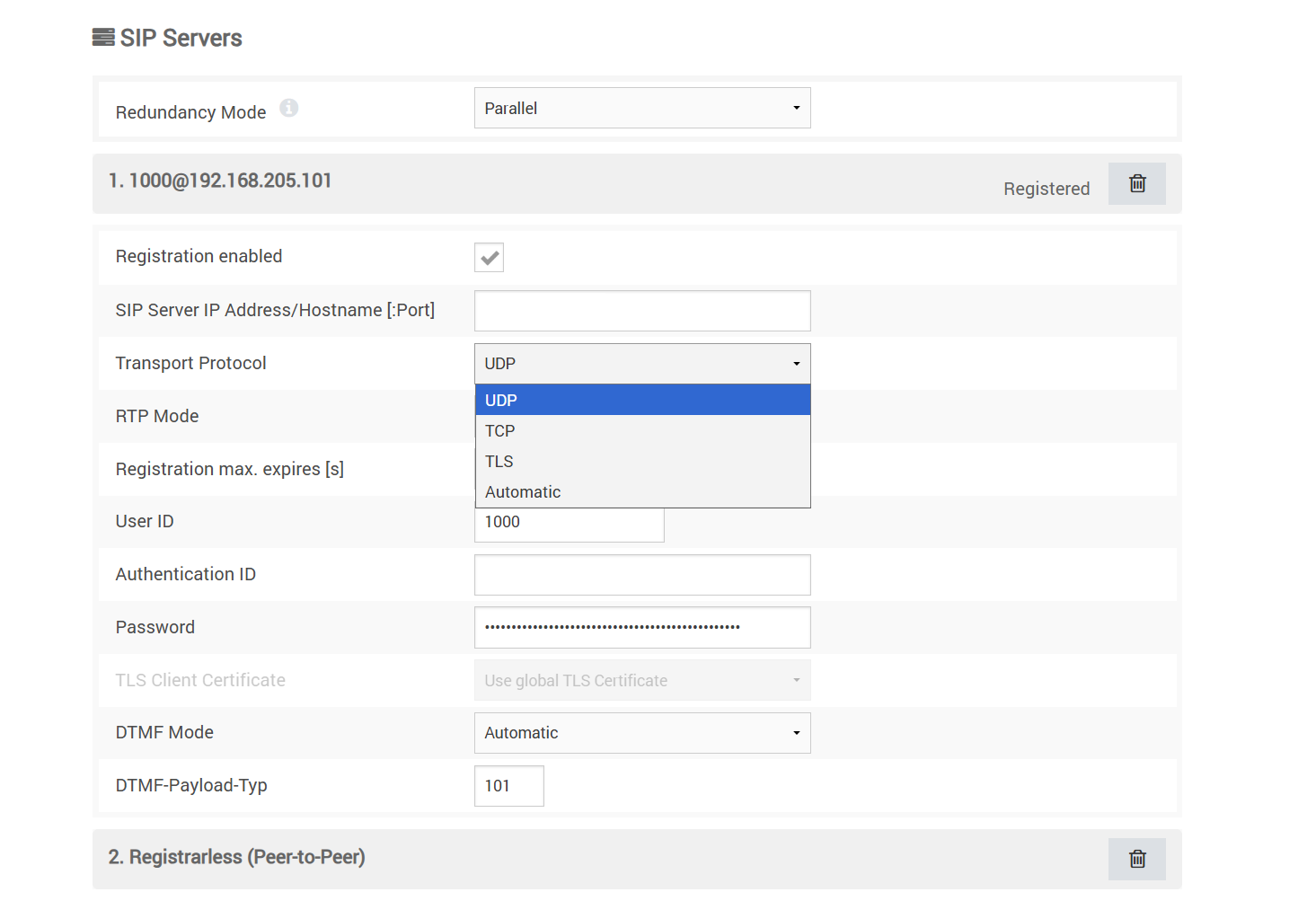
Look for a setting called Transport Protocol. Check what it’s set to (like UDP, TCP, or TLS).
They must match exactly.
|
|
|
If the setting is wrong, change it to match what CoCoS is using. |
|
|
Save Settings
After making changes, ensure to click "Save" to apply the new settings. |
|
|
After saving, go back to CoCoS and check if the intercom now shows as available. |
|
Still Not Working?
If it still doesn’t work, it could be another setting (like the system time or a secure connection setting).
Try this next: