
How to create and apply a theme to the CoCoS Environment
Question or Case description
CoCoS can use a customized theme for it's management. By default, the selected CoCoS management theme is not applied to the login screen in order to prevent the origin or ownership of CoCoS from being publicly disclosed. To apply the theme on the login screen a trusted domain or ip must be entered in the "trusted domain" section of CoCoS.
Application
Describe in which application / in what way the problem occurred. The issue was noticed when a script was created to open a door using an IO device controlled by webhooks.
How To
How to create a theme
|
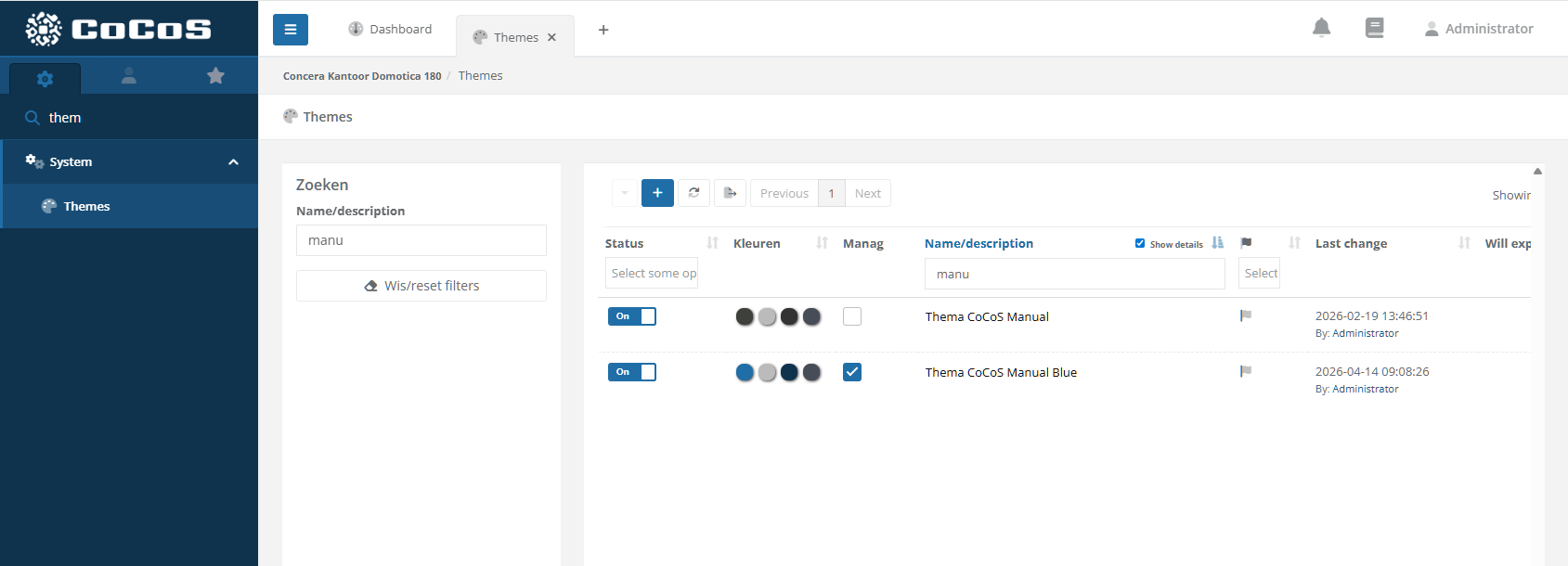
Open the theme collection
Use the menu and navigate to the Theme collection located in the "System" section. |
|
|
Use the [ + ] button to add a new theme
|
|
|
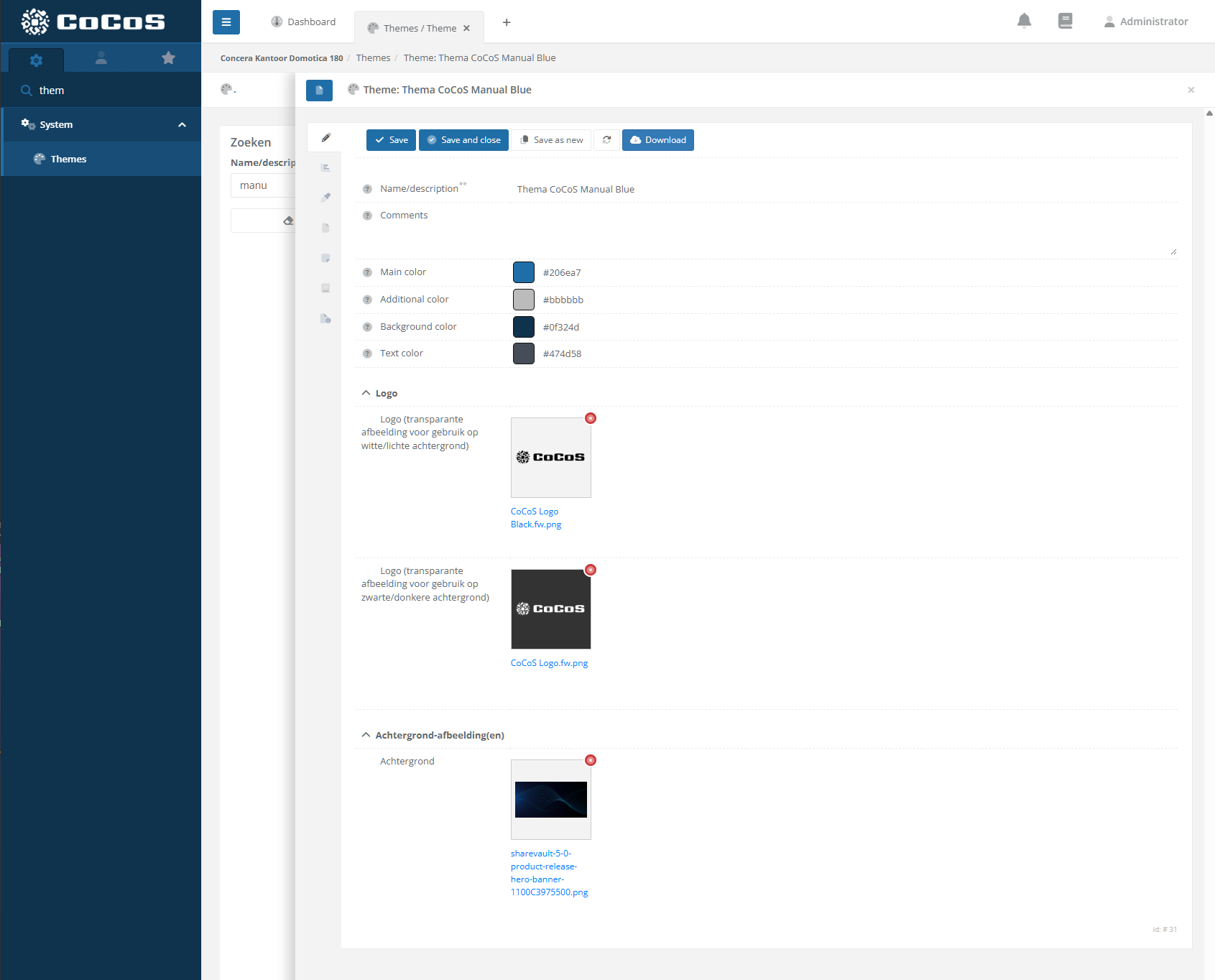
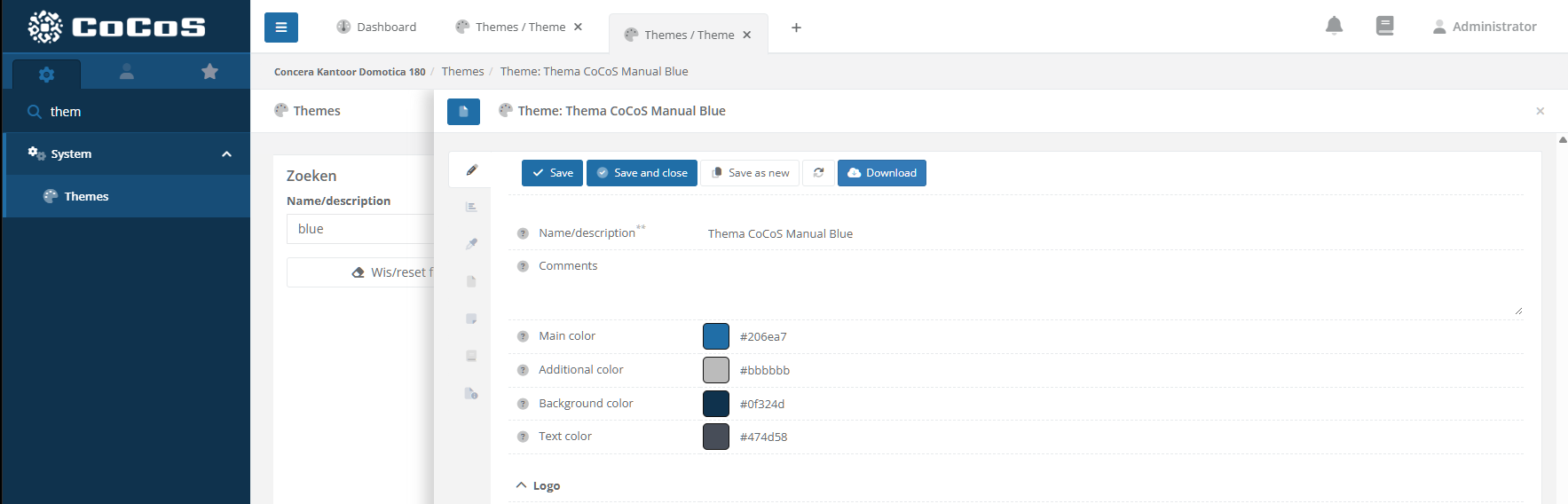
Create a new theme by entering the Name, various colors and images (logo's).
Main Color The main color is used for CoCoS buttons such as [Save], [Save and Close], etc. This color is also used to derive variations when distinction between buttons and related elements is required.
Additional color The additional color is use for color accents like badges, labels etc. Different tints are calculated based on this color and used for a variaty of elements
Background color The background color is used the for background of the menu. The lighter colors are derived from this base color.
Text color
Logo for light backgrounds Described as "Logo (transparante afbeelding voor gebruik op witte/lichte achtergrond)", this logo is used on light backgrounds like on the login screen. Described as "Logo (transparante afbeelding voor gebruik op zwarte/donkere achtergrond)", this logo is used on dark backgrounds like on the menu. Use an image with a transparent background.
Login Background Image Imaged used as background for the login screen of cocos.
When finished, click [Save] to store the theme
To use the theme activate it in the list. |
|

How to activate a theme for use in the management
|
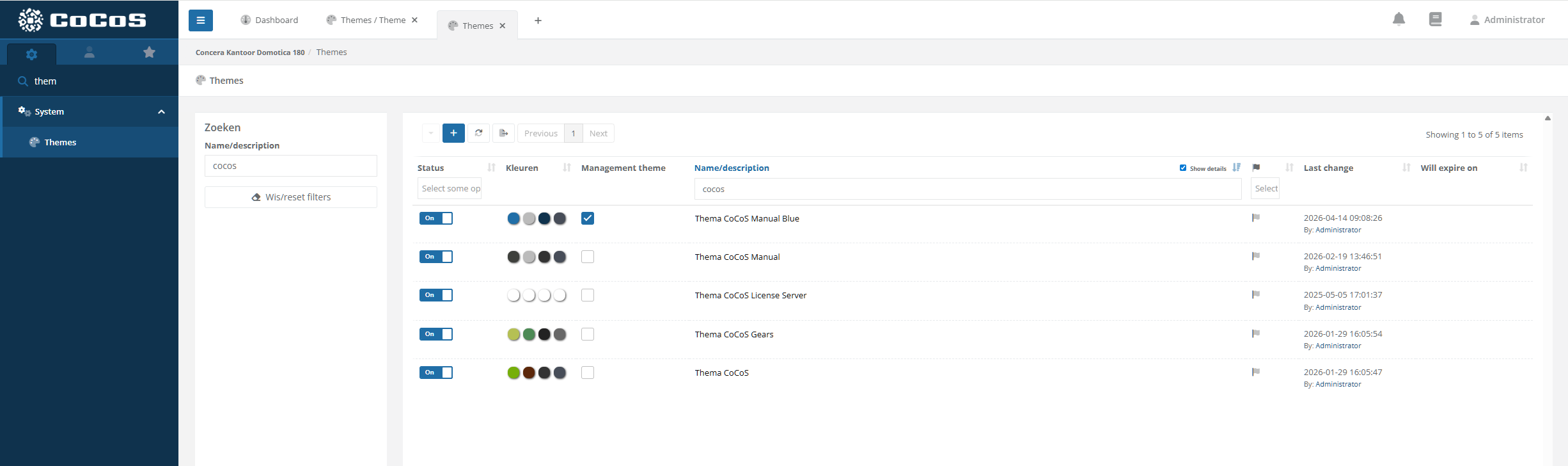
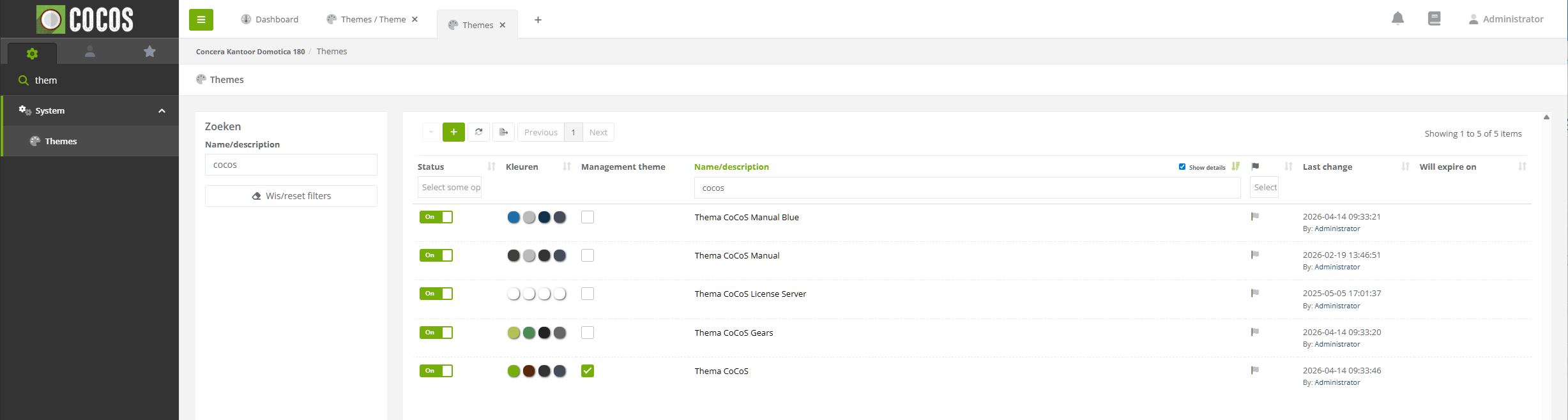
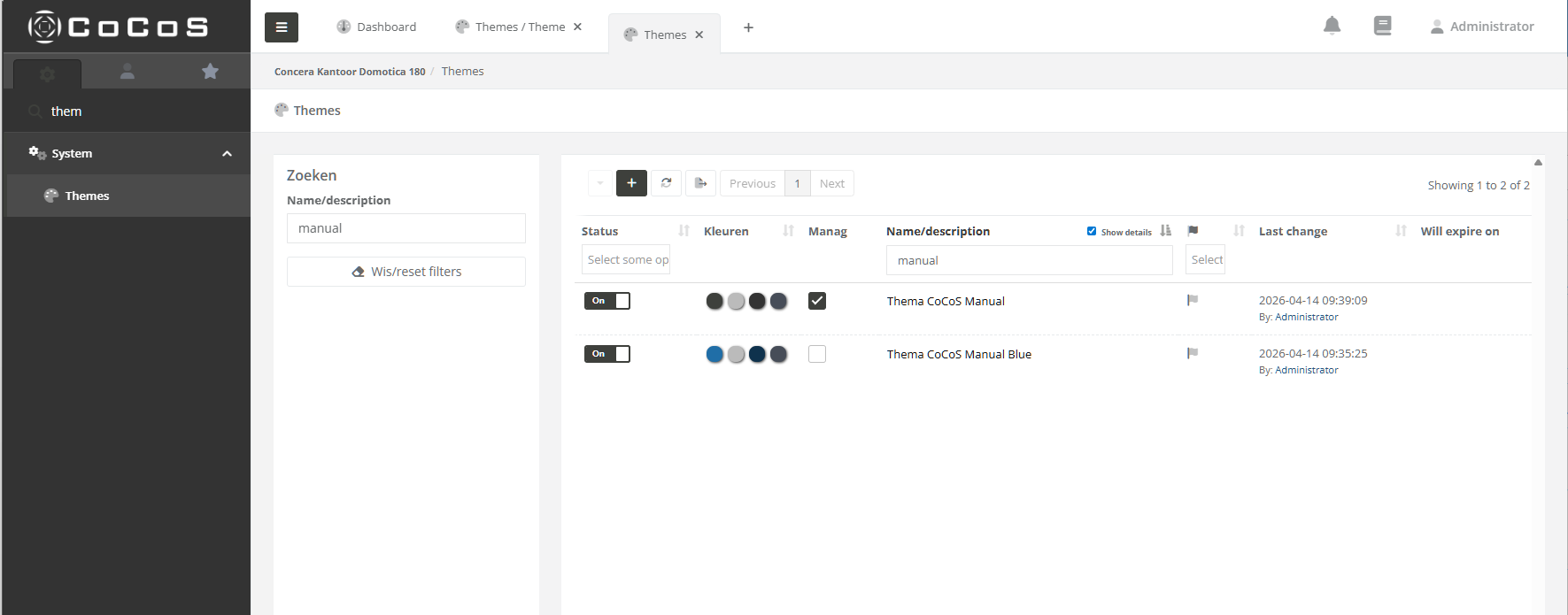
To use a theme for the management, activate the checkbox "Management Theme".
|
|
|
When selected the theme is applied instantly to the management application,
Note, by default the theme is applied to the login screen. To only apply the theme when logging in using a specific domain or ip, setup a "trusted domain/ip" in the System/Maintenance/Trusted domains collection (search for trusted). |
|
How to export a theme
|
To download a created theme, just hit the [Download] button in the theme.
|
|

How to import a theme
|
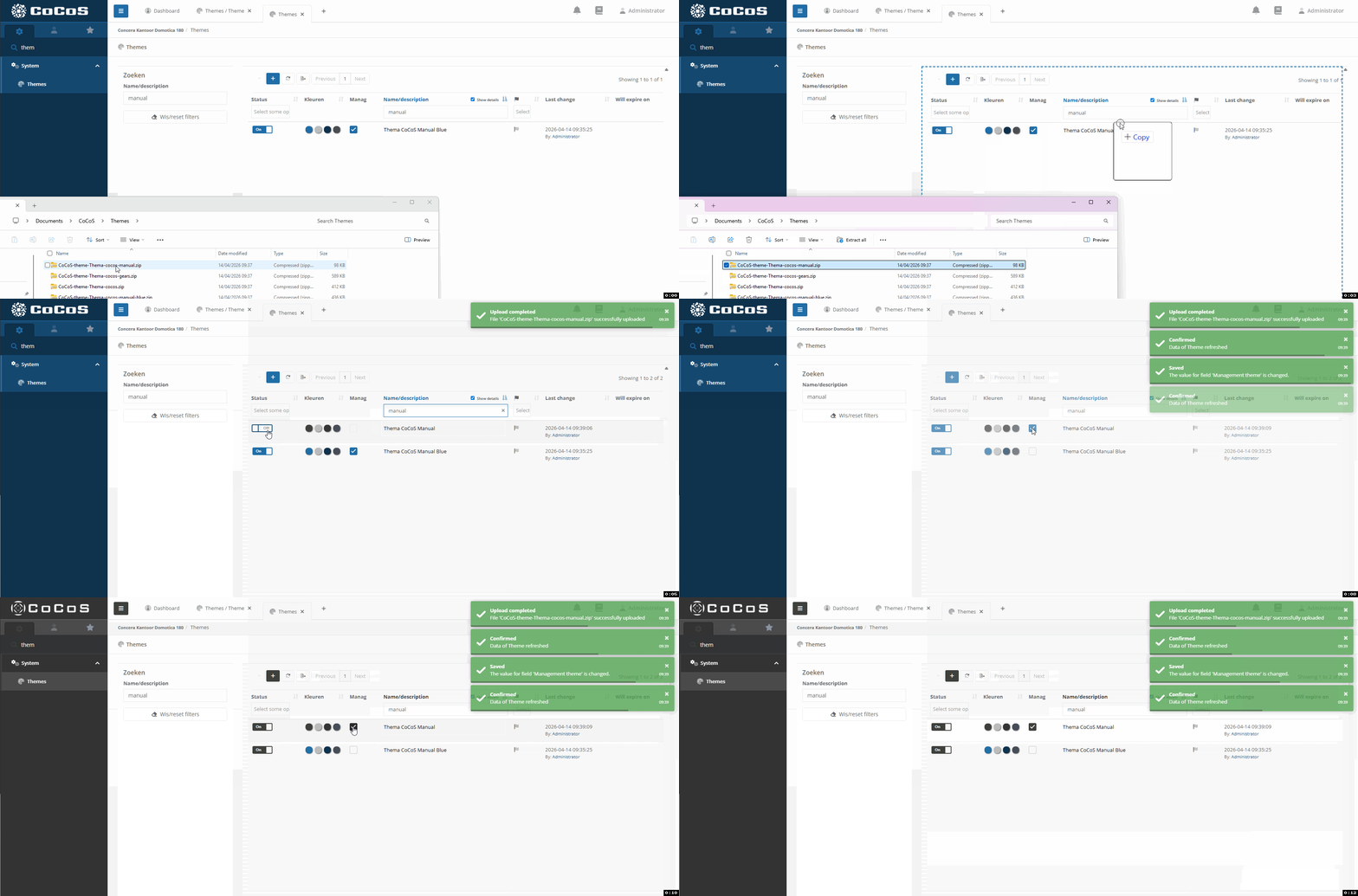
To import a theme, just drag and drop the theme that was downloaded from an other system, into the list of the themes.
|
|
|
Enable the Theme and select is for use on the management application by clicking the checkbox in the "management theme" column. The theme wil be applied instantly. |
|
How to allow a theme to be used on the login screen using a trusted domain/ip.
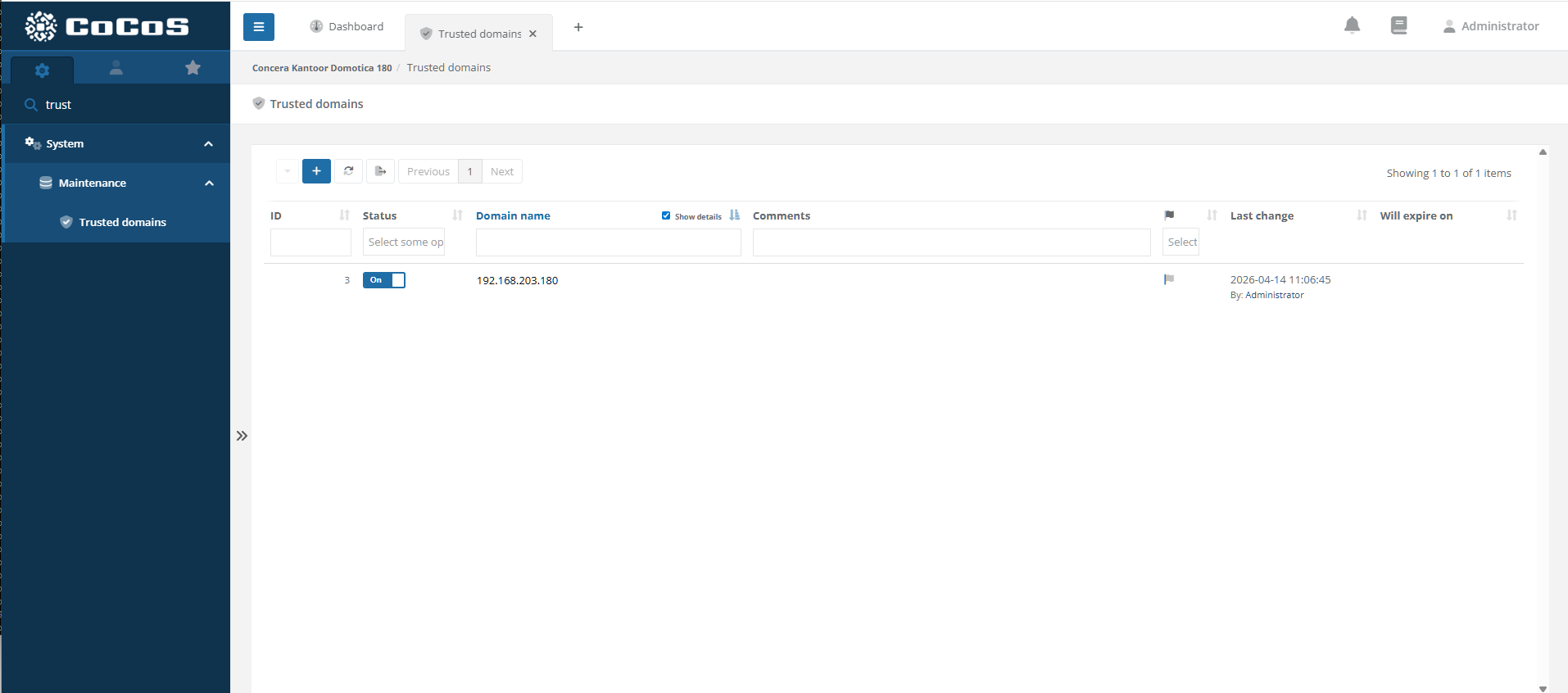
To only allow the theme to function on the login screen for specific domains, we need to add trusted domains. When the trusted domains list is empty, the theme will be applied always.
|
To only apply the theme when logging in using a specific domain or ip, setup a "trusted domain/ip" in the System> Maintenance> Trusted domains collection (search for trusted).
Just add the IP address or Domainname that is allowd to have the theme applied to the login screen. |
|
|
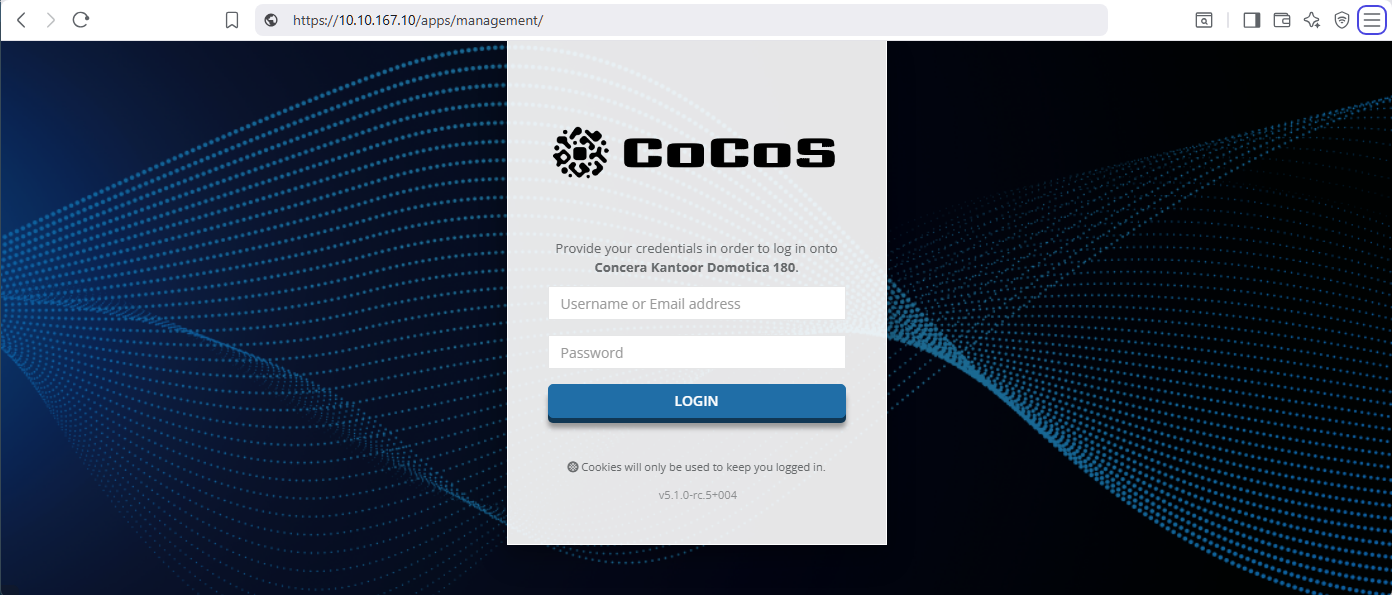
10.10.167.10 is added to the trusted domains list and will show an styled (themed) login screen |
|
|
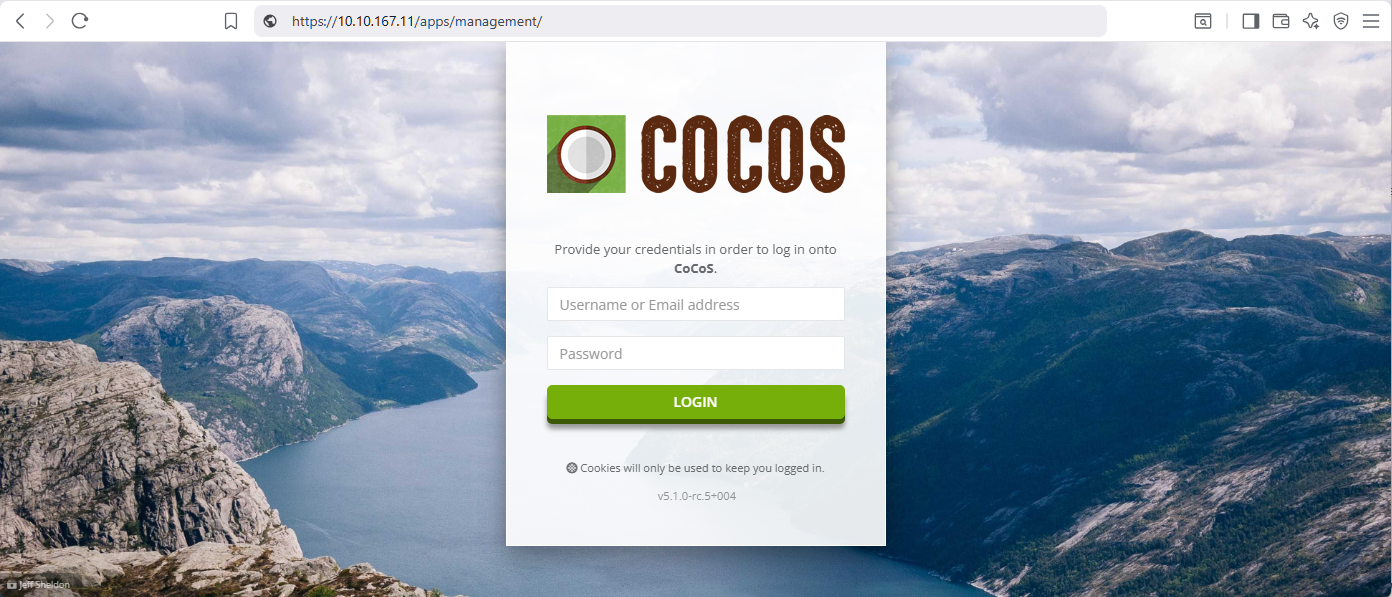
The ip-address 10.10.167.11 (untrusted) will show a default CoCoS theme on login. |
|
No comments to display
No comments to display