Unstable Intercom Connection Despite Stable Network (Ping OK)
Symptoms
The intercom device status continuously changes between "Available" and "Disconnected" even though the device is reachable on the network.
Related symptoms
- Intercom registration appears unstable
- Intercom goes offline and online repeatedly
- Device shows as disconnected while ping remains stable
- Calls to the intercom sometimes fail ( during connection losses )
- Error message when calling the intercom:
"Could not initiate call because the destination is not available for calls"
Details
This issue can be recognized by observing the device status in the system:
- The intercom successfully registers initially
- After a short time, the device status changes to Disconnected
- Shortly after, the device registers again and becomes Available
- This cycle repeats continuously
Even though the network connection appears stable (for example, ping tests are successful), the intercom is not consistently available for calls.
Cause
Short registration timeout
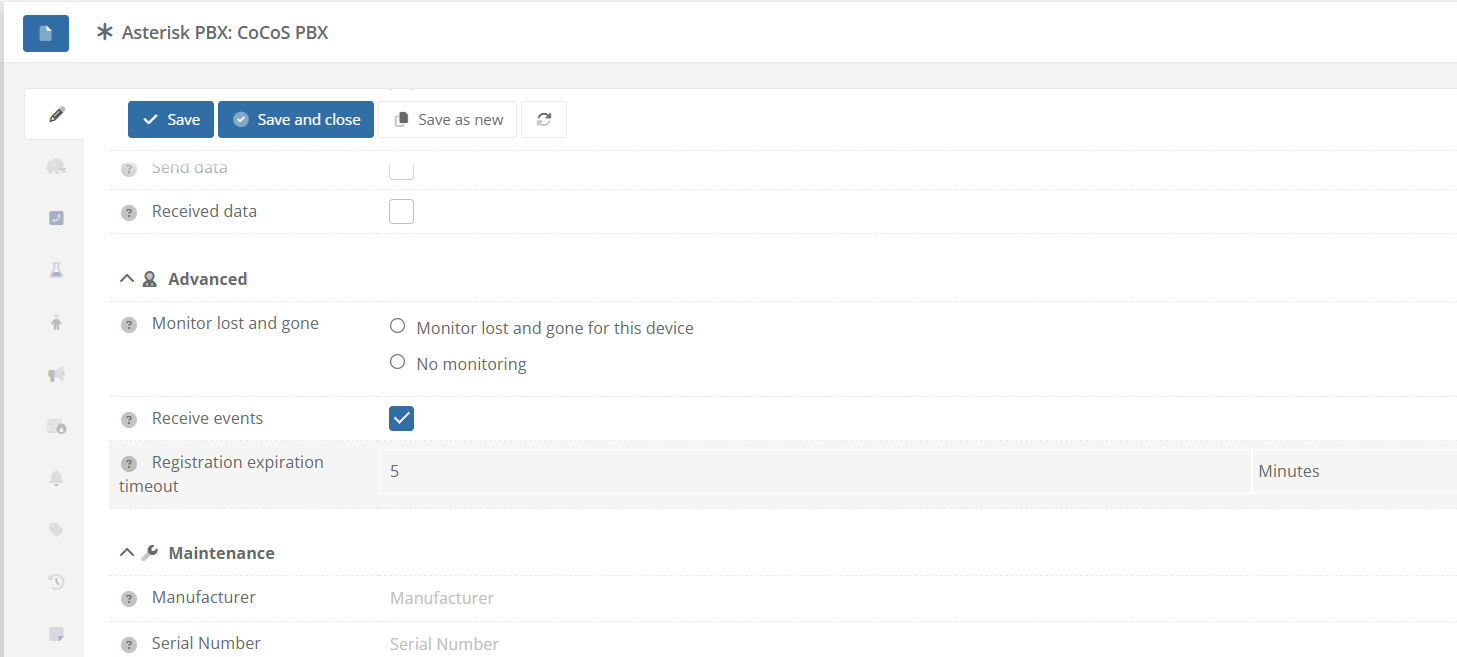
The configured registration timeout of the PBX device is too low.
This means:
- The registration expires before the intercom renews it
- The system temporarily marks the device as Disconnected
- The intercom then re-registers, causing the status to switch back to Available
Network Issue
Even when ping appears stable, there can still be network issues such as:
- Packet loss
- Delayed responses
- NAT session timeouts
- Firewall (mis)configuration
Solution(s)
Increase Registration Timeout
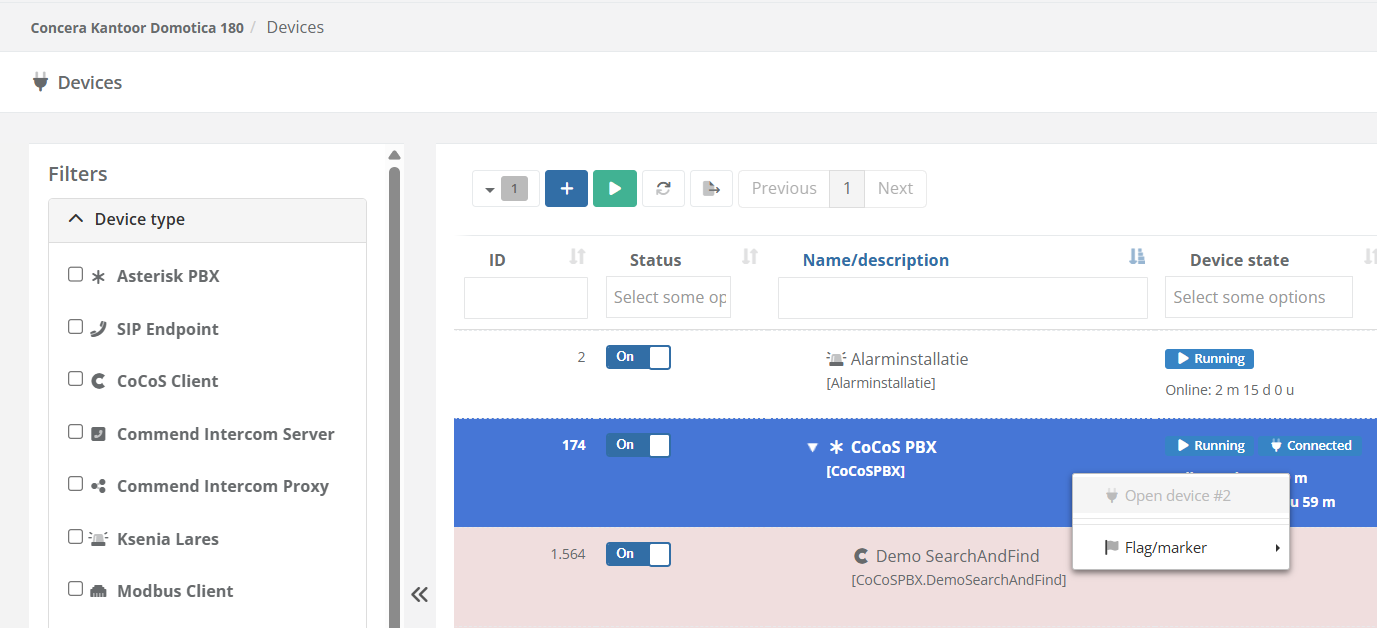
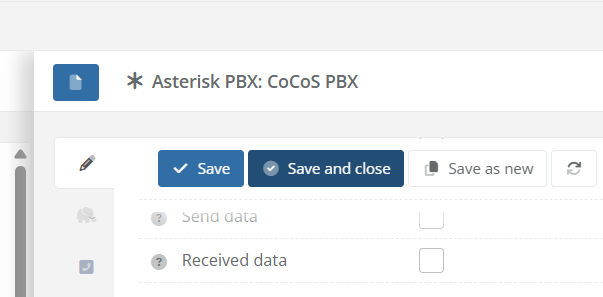
| 1. Open the PBX device configuration |
|
| 2. Locate the registration timeout setting |
|
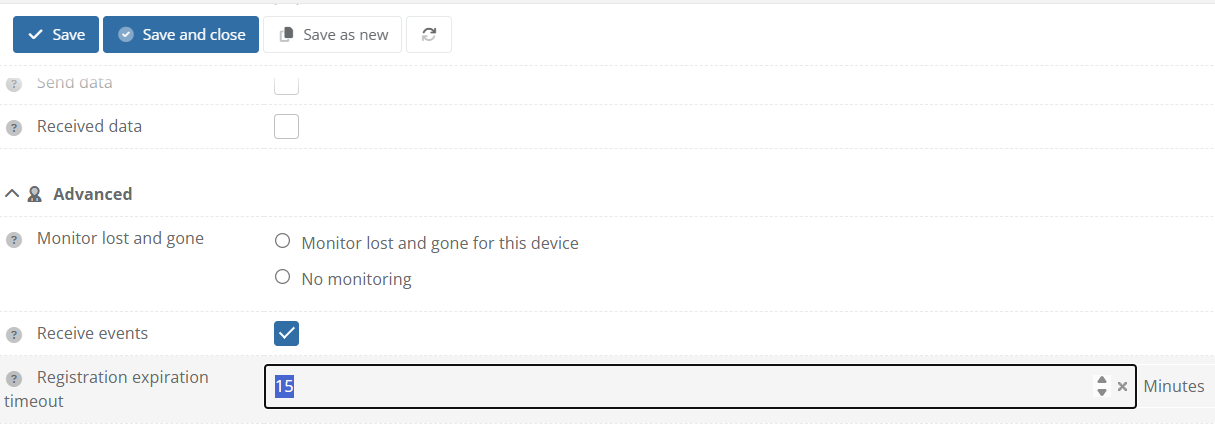
| 3. Increase the timeout value (for example: use a higher and stable value) |
|
| 4. Save the configuration |
|
Add rule for outbound SIP traffic
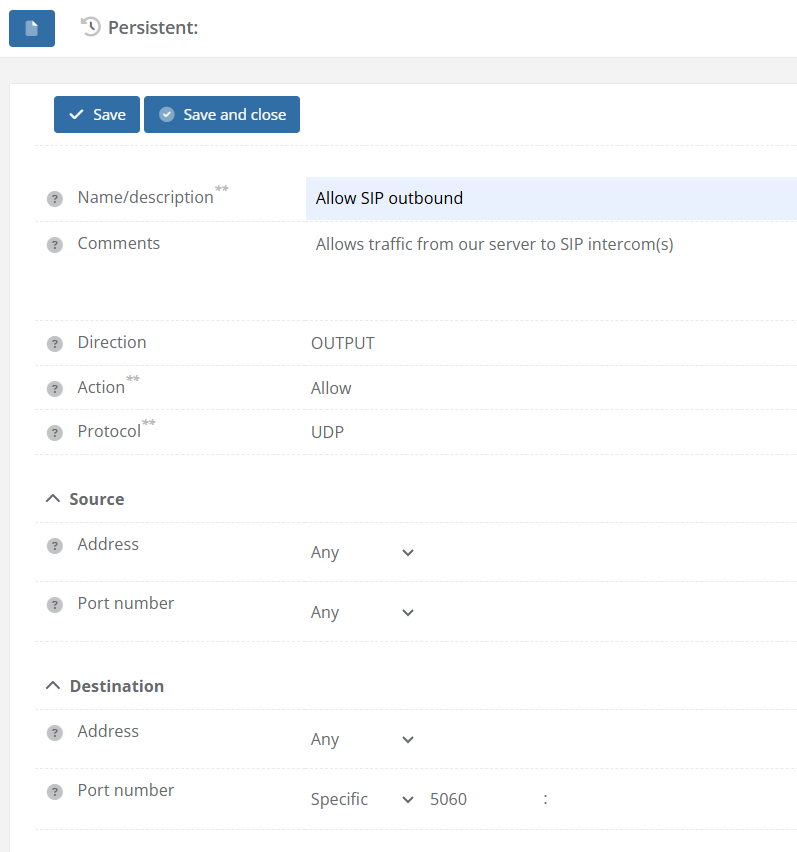
When no outbound rule for SIP traffic is configured the server can only accept registrations and not monitor them.
This may cause unstable registration status for certain intercom devices.
Effects:
Asterisk Connector Version: 5.2.43 and lower
CoCoS Version: 5.1.0 and onwards.
Note: You will need access to system / networkFirewall to manage firewall rules.
| 1. Navigate to: System → Network → Firewall | |
|
2. Create a new rule with:
|
|
|
3. Click Save and Close to store the rule configuration. |