
Pololu Maestro Controller not recognised by software
Symptoms
Although the Pololu Maestro Controller is connected to the system (e.g., a CoCoS Client or Sealink Imager), the software on this system is unable to communicate with the servo controller. As a result, hardware control functions do not work (such as PWM/servo/output), and/or input signals are not received.
Details
Depending on the system/software, an error may be displayed.
How to fix
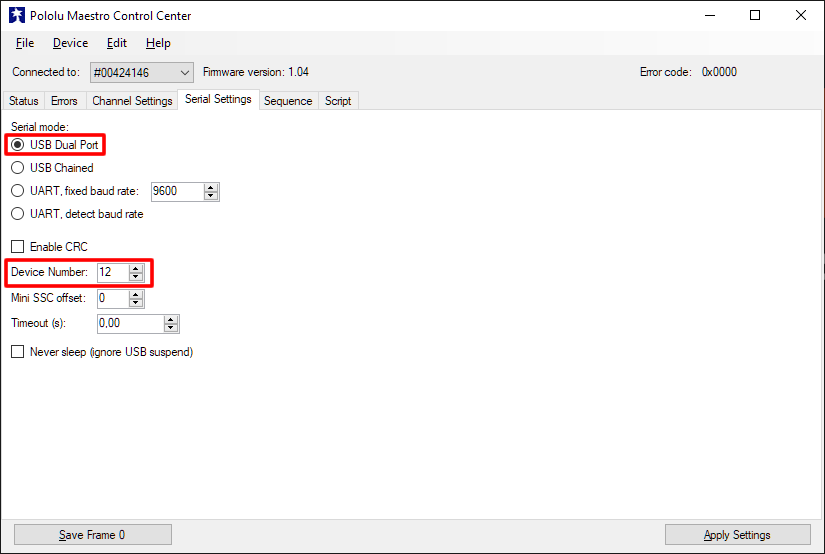
A (possible) fix can be found in the configuration/settings of the Pololu Maestro Controller.
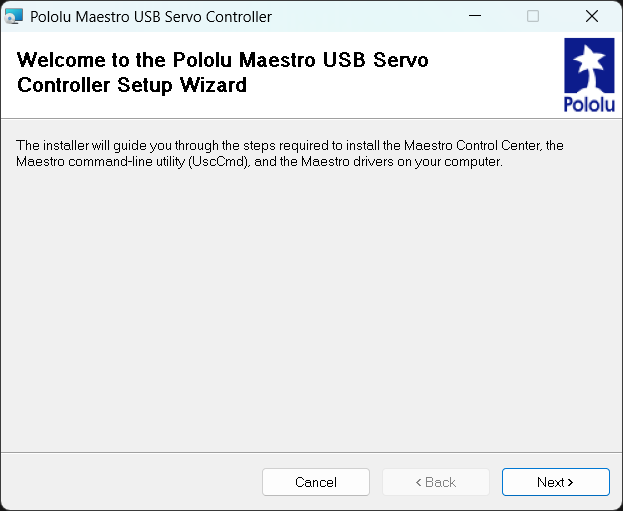
| Step 1: If not installed/available: Download the "Pololu Maestro Control Center" from https://www.pololu.com/file/0J266/maestro-windows-241004.zip onto your PC and install it.
Use the [ Next > ] button a couple of times to start the installation. Most options are configured correctly by default and don't require adjustments. |
|
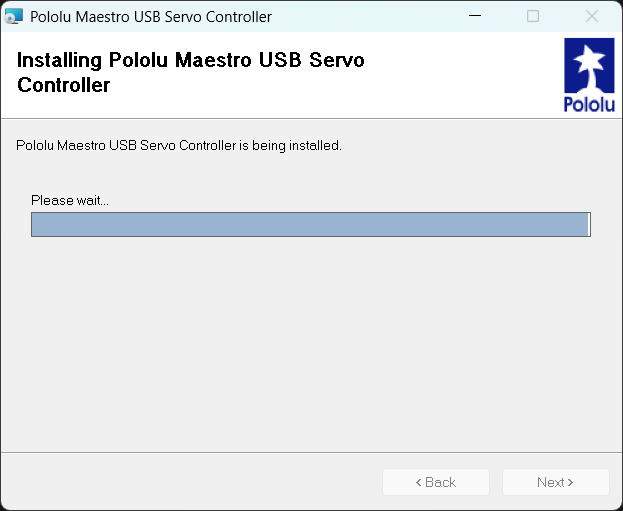
| Wait fot the Pololu Maestro USB Servo Controller to be installed. |
|
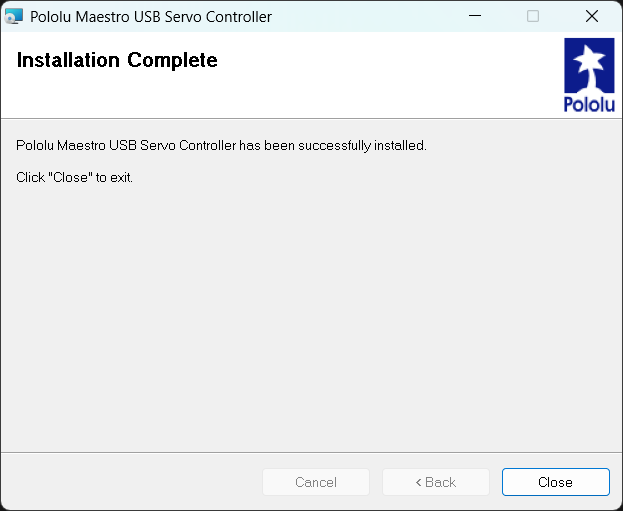
| Hit the [ Close ] button once the installation is completed. |
|
|
Step 2:
|
|
| If available, use the option "File" -> "Open settings file..." in order to apply an existing configuration to the Pololu Maestro Controller. | 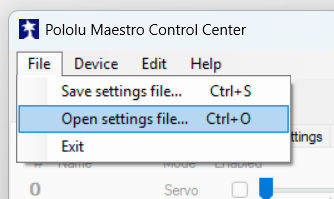 |
|
Use the button [ Apply Settings ] to write the changes to the Pololu Maestro Controller. |
|
After this, re-connect the Pololu Servo Controller back to the system (e.g., a CoCoS Client or Sealink Imager) and try again.
Friendly reminder: When changes/adjustments where nessecary to get a Pololu working for a specific project, based on an existing settings file, always save/export the current settings and document/store it in the project where it belongs.
References
Configuration example(s):
No comments to display
No comments to display