
How-to start a packet capture
Description
This article explains how to start, stop, and download a packet capture within the CoCoS platform.
A packet capture allows you to record network traffic so you can analyze protocols such as SIP and RTP. Packet captures are often used to diagnose call quality issues, signalling behaviour, or general network irregularities.
Application
Packet captures are typically used when analyzing network behaviour.
Examples include:
-
Verifying SIP signalling sequences
-
Inspecting RTP audio streams
-
Identifying latency, jitter, or packet loss indicators
-
Troubleshooting firewall or routing behaviour
How To
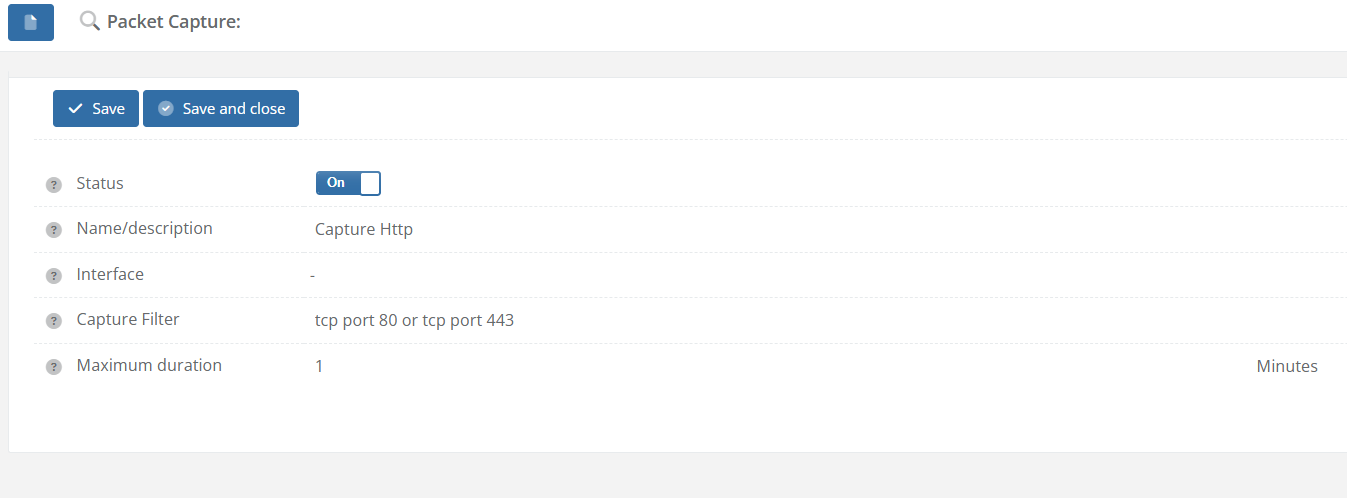
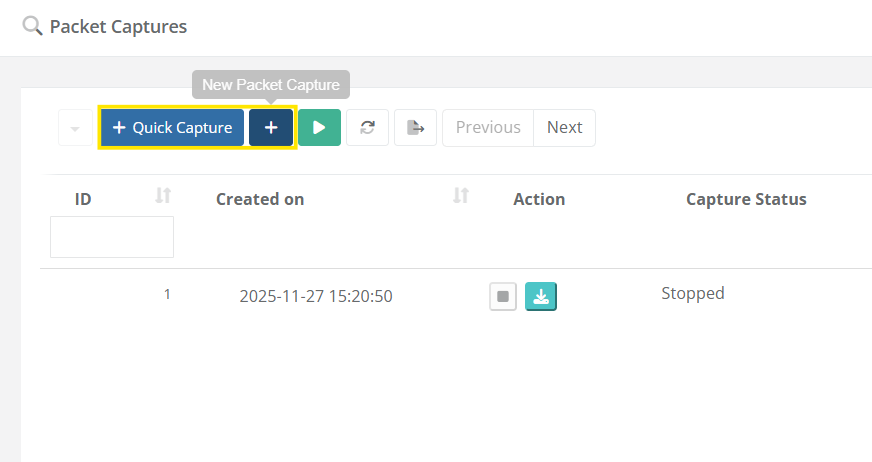
Packet captures can be created directly from the Network section in CoCoS. The steps below explain how to perform a quick capture or how to configure a custom capture.
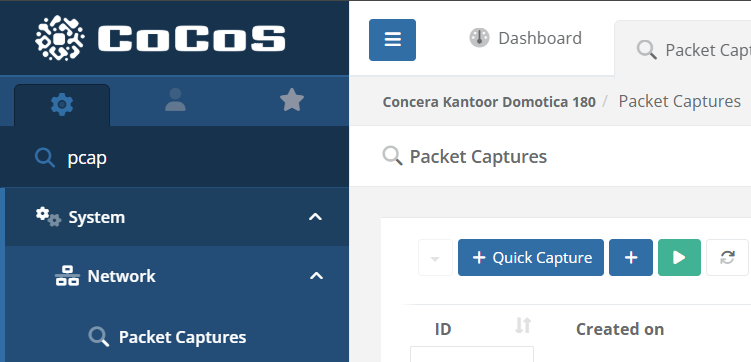
| Step 1: Open the Packet Capture page Navigate to System → Network → Packet Captures in the CoCoS application menu. |
|
|
Step 2: Start a capture
|
|
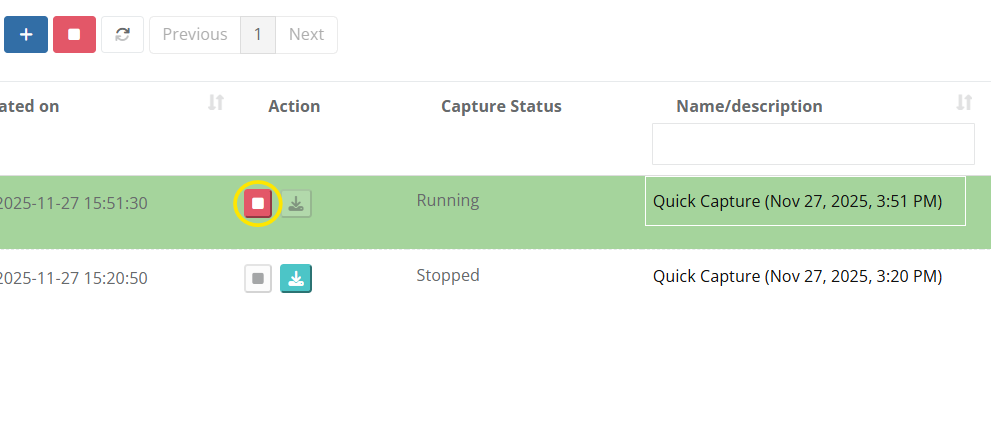
| Step 3: Stop the capture Once the capture has started, use the Stop action to end the recording. Captures can run until manually stopped or until predefined limits are reached. |
|
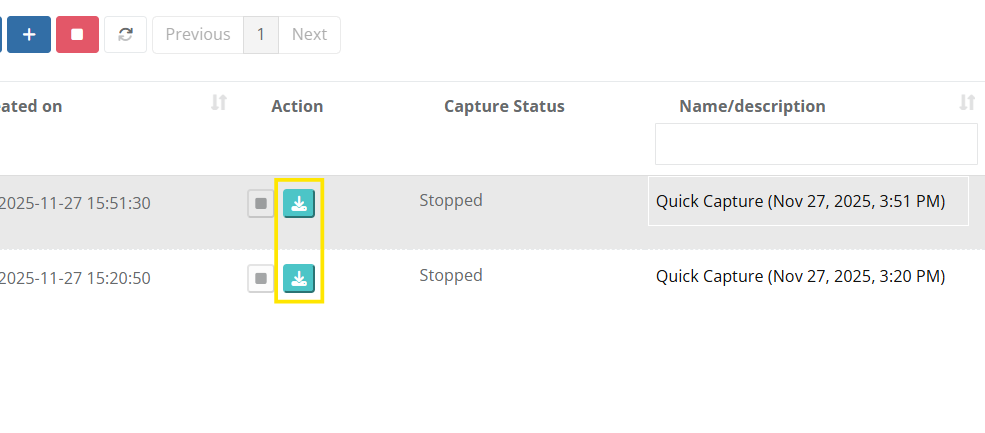
| Step 4: Download the capture After the capture has stopped, click the Download action to save the capture file. The downloaded file can be opened with standard analysis tools such as Wireshark. |
|
No comments to display
No comments to display