
How-to Install CoCoS v5 on Debian 12
System Requirements
The performance and requirements vary per solution. Real-time industrial solutions require more performance then a simple local smal intercom server. The following system resources are used (or configured for virtual environments) for the most commonly deployed systems.
| CPU | 4 cores (2,5GHz minimal) |
| Memory | 8GB minimal |
| Harddisk |
The CoCoS system includes extensive logging, historical data storage, periodic backup services, call recording, and traffic tracing, all of which require a significant amount of disk space. Please use larger disk configurations if a high volume of data is expected. Data retention settings can be adjusted if disk space becomes insufficient. |
|
Supported Linux versions |
Debian 12 (preferred)
Ubuntu 24.04 LTS (supported)
Ubuntu 22.04 LTS (technically supported, but discouraged due to end of support in Q2 2027)
|
|
Requirements for installation |
Network and internet access. |
This manual describes the installation process of CoCoS on Debian 12. Installation on other Linux distributions is considered custom work and will be supported for CoCoS upgrades and updates exclusively on a time-and-materials basis.
Installation of Debian 12
Linux Source Image
For installation normaly the Debian NetIso which can be found at https://www.debian.org/CD/netinst/#netinst-stable. Don't use Debian images for any other websites then the origional Deibion website.
The default 64bit ISO image for intel cpu's can be download via the following url:
https://cdimage.debian.org/debian-cd/current/amd64/iso-cd/debian-13.3.0-amd64-netinst.iso
Setup process
|
Start the Debian Installation ISO via CD Drive, mounting or USB. We assume booting the Linux ISO don't need explaining.
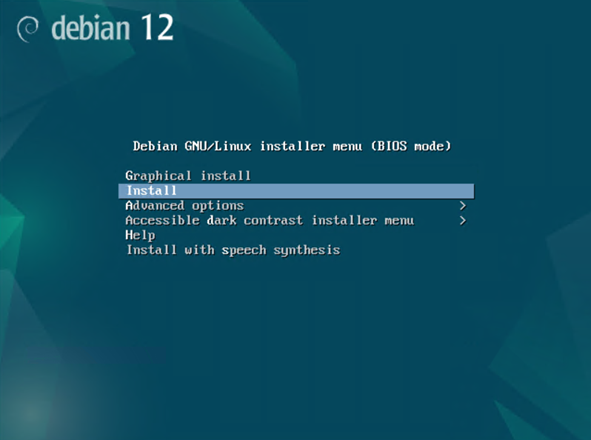
Select the option “Install” (to install the server version of Debian). |
|
|
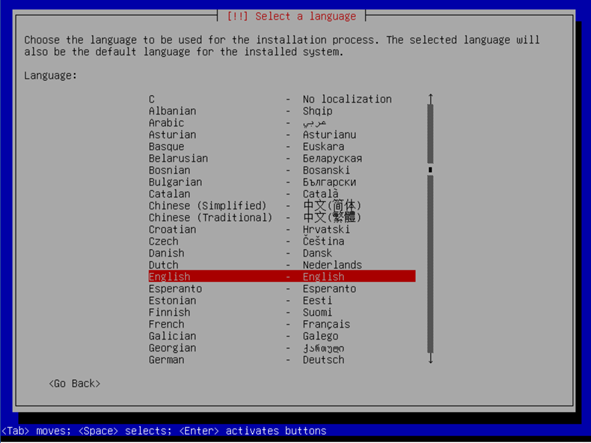
Select you preferred language.
Confirm your selection by pressing [Enter]. |
|
|
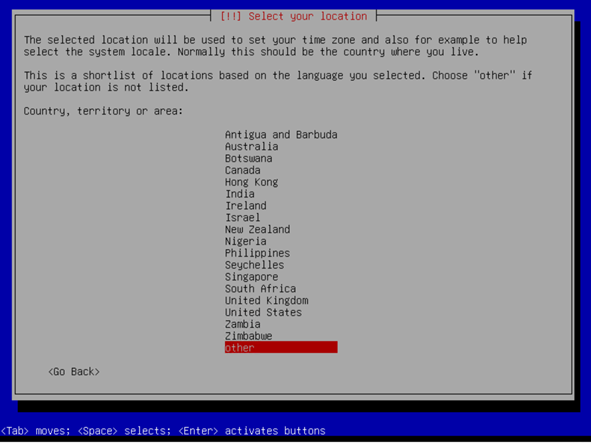
Select the country where the installation will be used.
Confirm your selection by pressing [Enter]. |
|
|
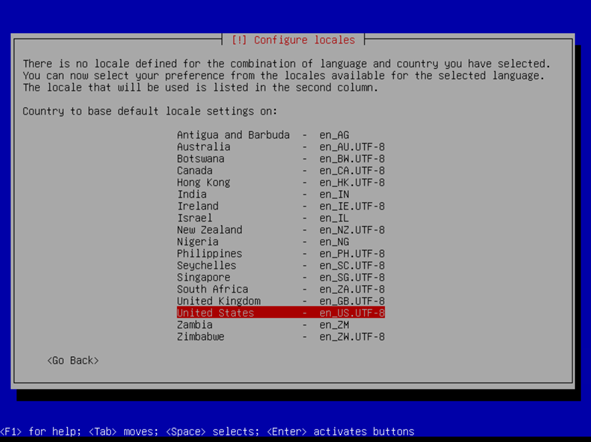
When selecting the locales, choose “United States / en-US.UTF-8.”
Confirm your selection by pressing [Enter]. |
|
|
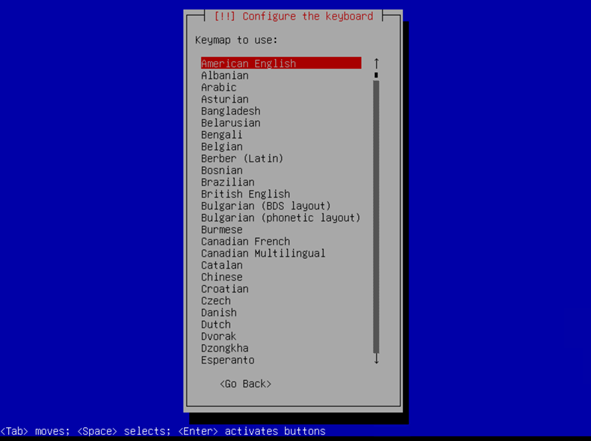
Please select you preferred type of keyboard (keymap).
Confirm your selection by pressing [Enter]. |
|
|
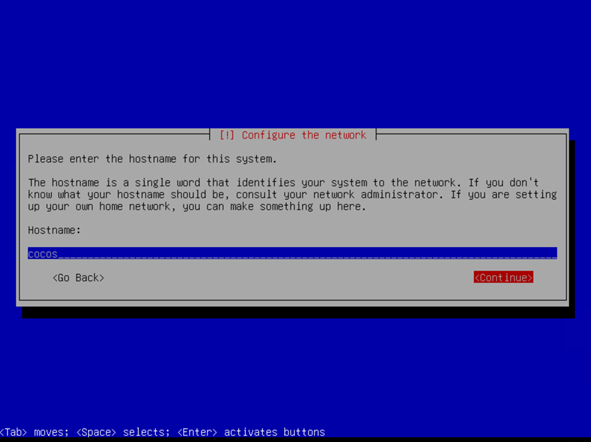
Enter the required hostname for the system.
Select continue and press [Enter]. |
|
|
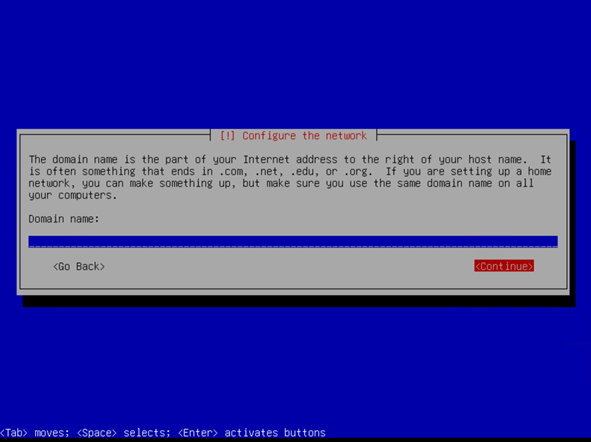
The domain name is not required and can be left empty.
Select the option <Continue> and confirm your choice by pressing [Enter]. |
|
|
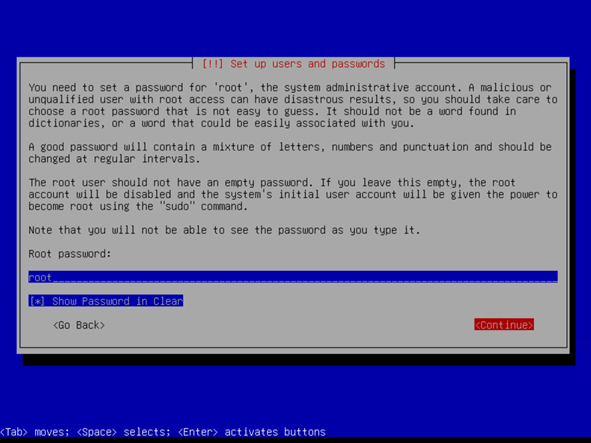
Kies een sterk wachtwoord voor de gebruiker root. Dit is de hoofdgebruiker van het systeem en krijgt alle rechten toegewezen.
Note the root password, you will need them during the installation of CoCoS and for system administration.
Select the option <Continue> and confirm your choice by pressing [Enter]. The next page wil ask you to confirm the password. |
|
|
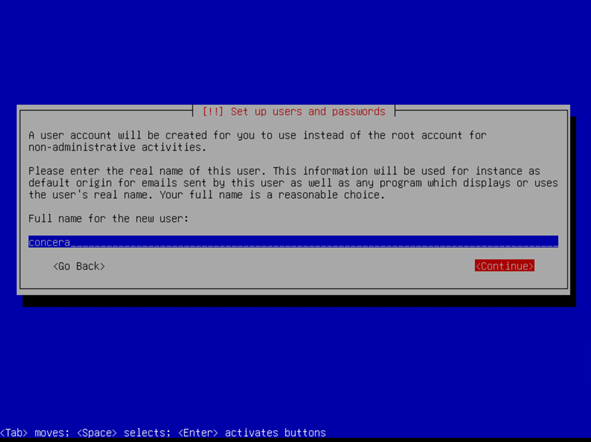
In the next three screens a "normal" user for linux is created. This user is used to login via SSH and on the console when direct root login is disabled.
Note! Do not use the user "cocos" or "admin". "cocos" and "admin" are reserved users and login settings will be disabled for this user during setup.
Fill out the form for the full name, username and password.
Note the username and password, you will need them during the installation of CoCoS and for system administration.
Select the option <Continue> and confirm your choice by pressing [Enter]. |
|
|
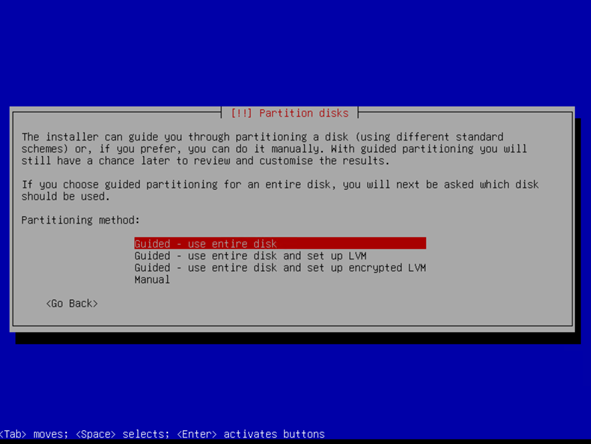
The setup will create disk partitions. If you're an advanced user you can change the partions, but if you're setting up Debian or CoCoS for the first time you maybe better off keeping the partions set to "Guided - use entier disk".
If you're an advance user we recommend using 8GB of Swap memory minimal. CoCoS will extend the Swap memory if need using a swapfile.
Confirm your choice by pressing [Enter] |
|
|
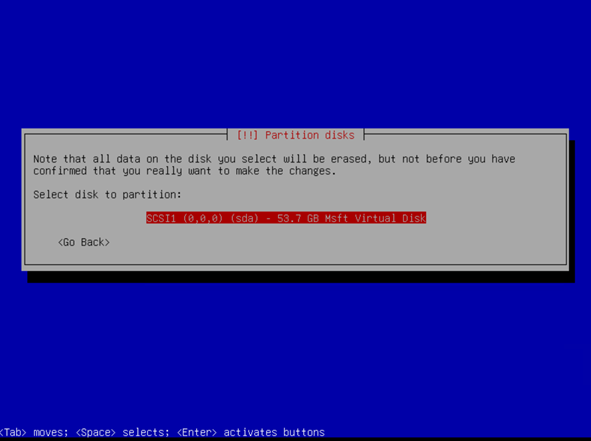
Please choose the disk to use for CoCoS.
Confirm your choice by pressing [Enter] |
|
|
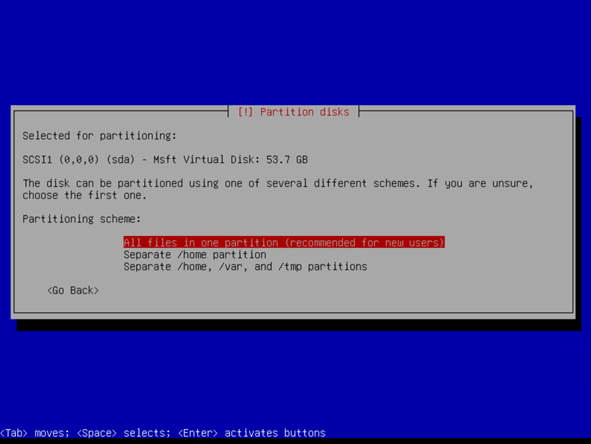
When selecting the partitioning scheme, choose “All files in one partition (recommended for new users).”
Confirm your selection by pressing [Enter]. |
|
|
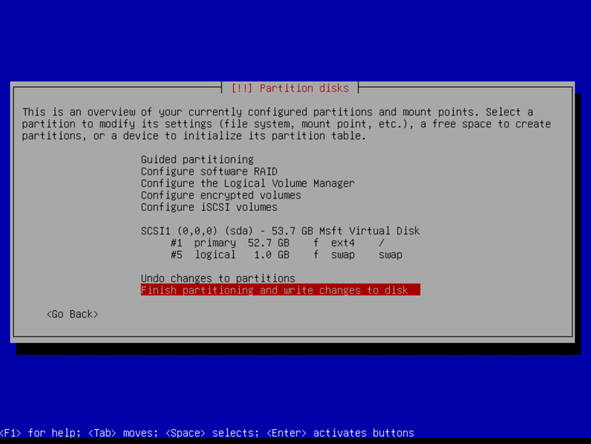
Confirm the disk partitioning by selecting “Finish partitioning and write changes to disk.”
Confirm your selection by pressing [Enter]. |
|
|
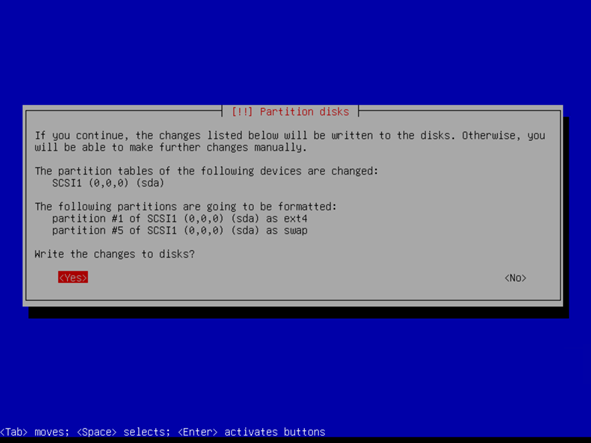
When prompted with “Write changes to disk?”, select “<Yes>.”
Confirm your selection by pressing [Enter]. The next few screens will show some progress bars while the system handle the first installation steps. |
|
|
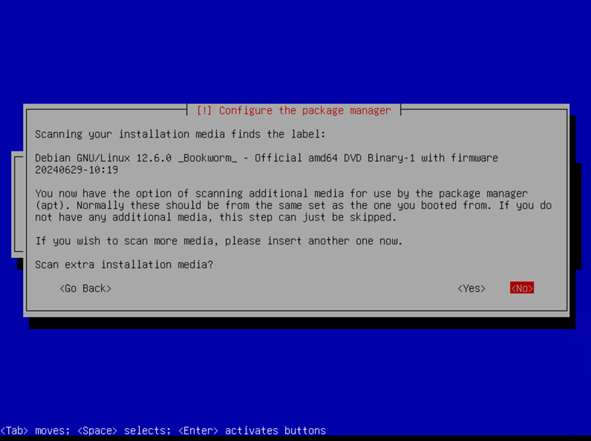
Wait for the system to land on "Configuring the package manager".
Unless you need specific drivers, Select <no> and press [Enter]. |
|
|
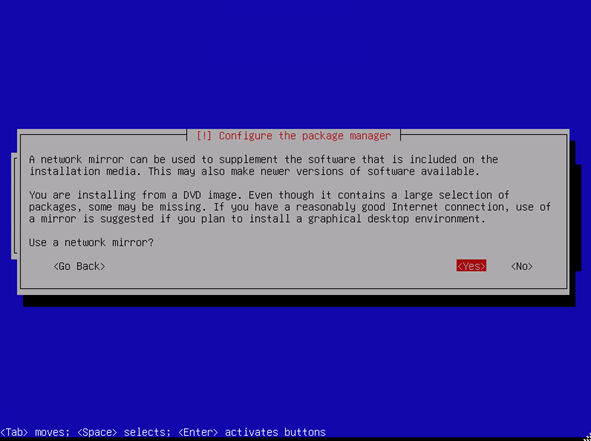
When prompted with “Use a network mirror?”, select “<Yes>.”
Confirm your selection by pressing [Enter]. |
|
|
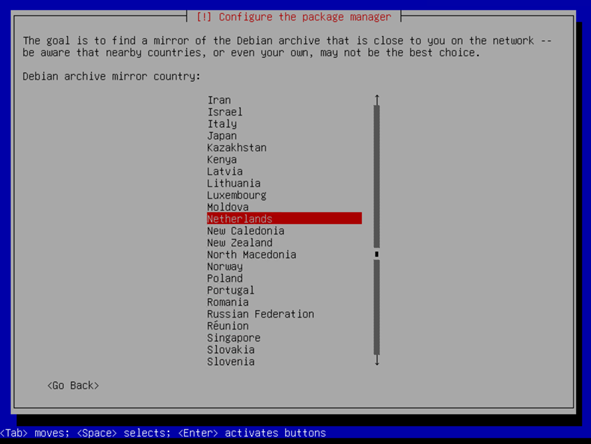
Select a preferred location for downloading the Linux packages from a archive mirror. If you don't have and prefference, you can leave it at the default selection.
Confirm your selection by pressing [Enter]. |
|
|
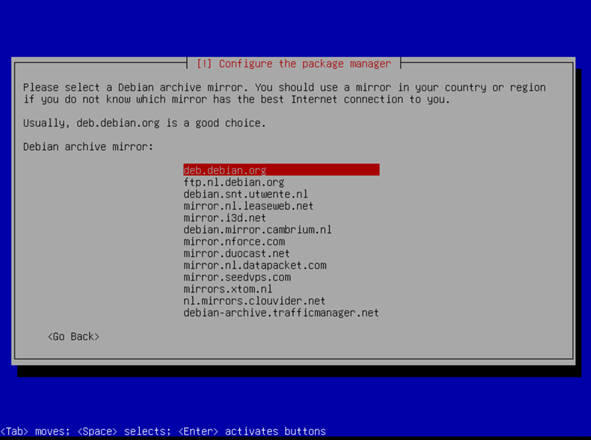
When selecting the Debian archive mirror, choose “deb.debian.org.”
Confirm your selection by pressing [Enter]. |
|
|
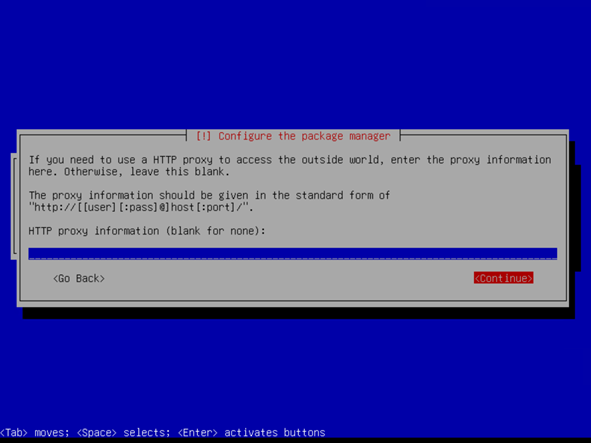
Leave the “HTTP proxy information” field empty.
Select the option <Continue> and confirm your choice by pressing [Enter] |
|
|
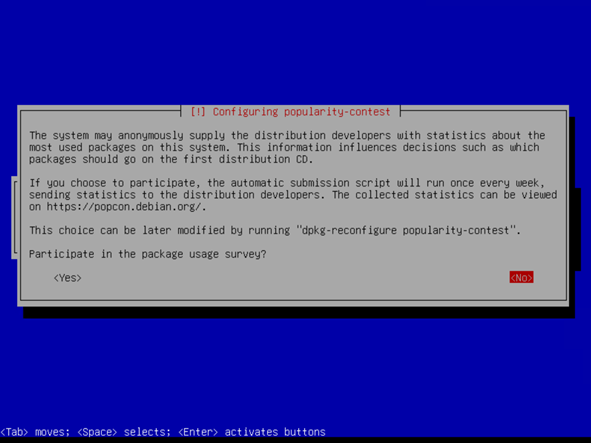
When prompted with “Participate in the package usage survey?”, select “<No>.”
Confirm your selection by pressing [Enter]. |
|
|
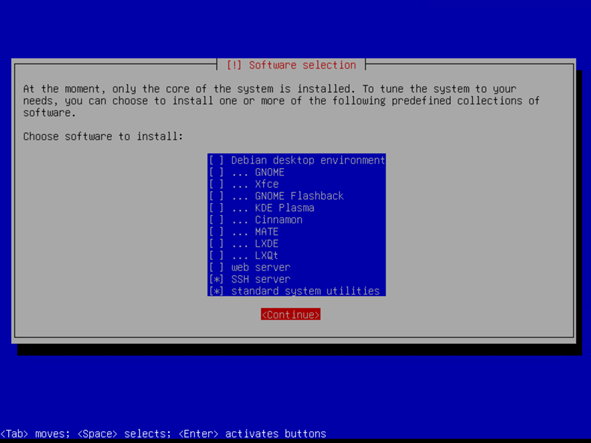
When selecting “Choose software to install,” only select the options “SSH server” and “standard system utilities” by marking them with the [Space] key.
Select the button <Continue> and confirm your choice by pressing [Enter]. |
|
|
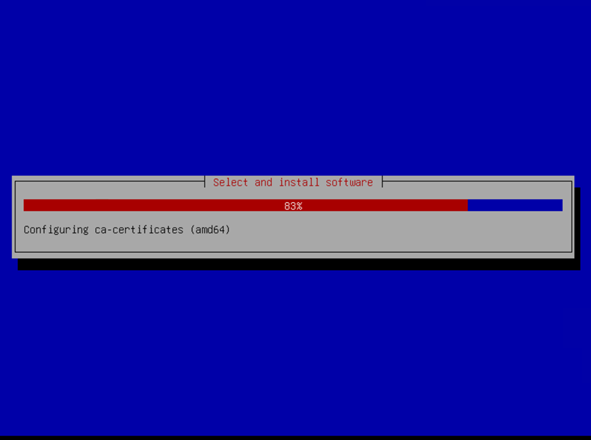
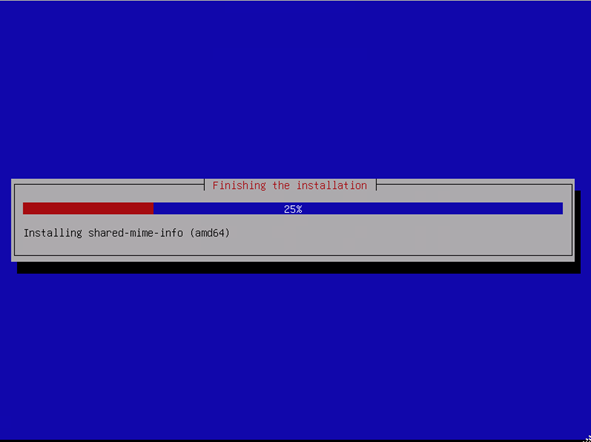
Wait until all software has been installed.
|
|
|
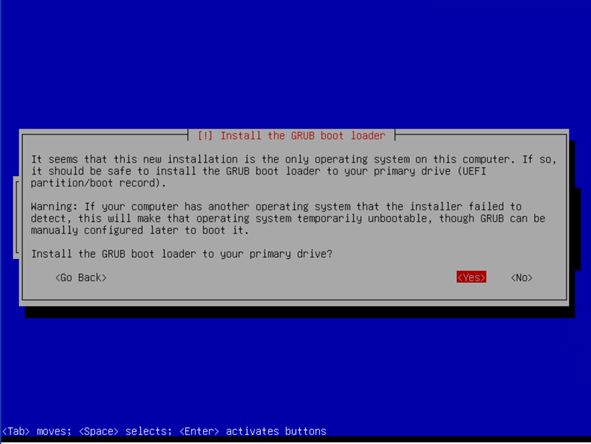
When prompted with “Install the GRUB boot loader to your primary drive?”, select “<Yes>.”
Confirm your selection by pressing [Enter]. |
|
|
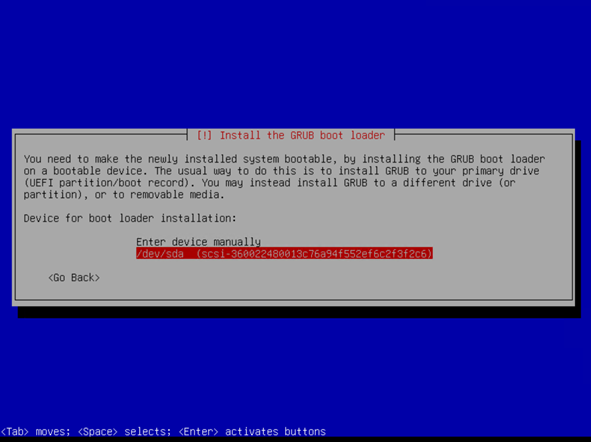
When selecting the device for boot loader installation, choose the disk on which the system is installed.
Select this option and confirm your choice by pressing [Enter]. |
|
| Wait until the installation is fully completed. |
|
|
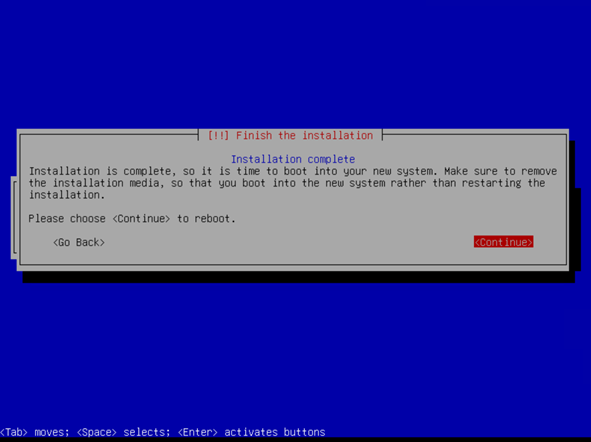
The installation is now complete.
Select the option <Continue> and confirm your choice by pressing [Enter]. |
|
|
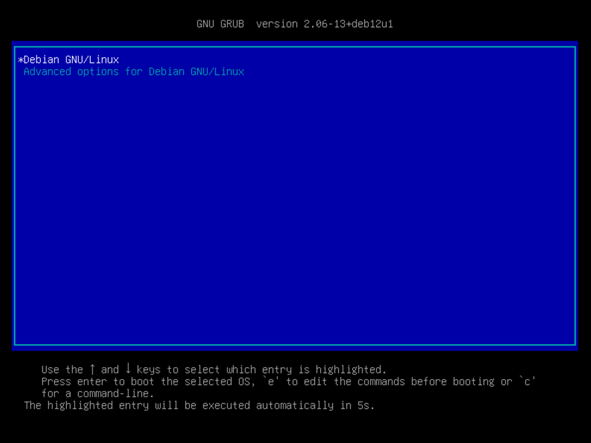
The system startup screen.
After the restart, the GRUB boot loader will briefly appear and will automatically proceed to start “Debian GNU/Linux.” |
|
Prepare for CoCoS installation
Verify that the Debian 12 installation has been completed according to the above instructions. Installing CoCoS requires, just like installing Linux a working network and internet connection.
|
Start the Linux Debian 12 system bij turning on the server / virtual machine.
|
|
|
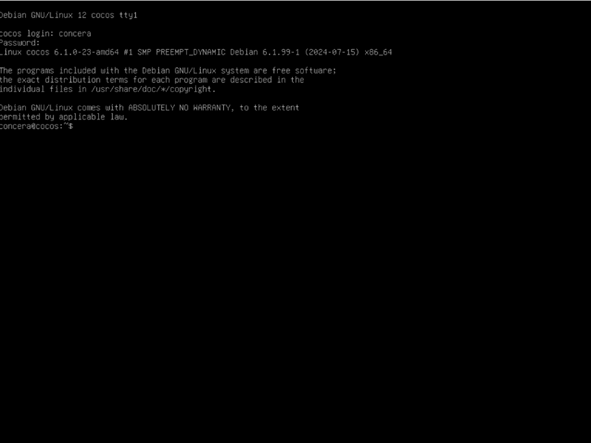
Login using the Linux user by entering the username and password.
After logging in login as user root by using the following command:
|
login as root:
|
|
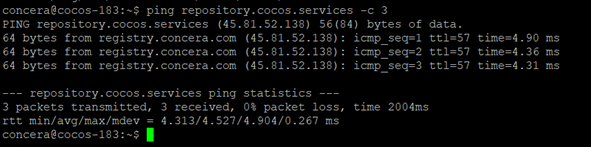
Check if the internetconnection is working by executing the following command on the linux commandline:
ping -c 3 repository.cocos.services |
|
|
IMPORTANT!
If the installation is performed via an SSH terminal (for example, using PuTTY), it is necessary to configure a static IP address.
During the installation, the network configuration will be modified, and when using DHCP, the IP address may change.
Please open the file /etc/network/interfaces by typing the follwoing command:
After changing the configuration, restart the network-configuration using the following command:
For more information on how to setup the network configuration on an empty Debian environment visit wikipedia at:
https://wiki.debian.org/NetworkConfiguration#Configuring_the_interface_manually |
Please use the following configuration for inspiration / example. Replace the settings using your own network settings.
|
|
The CoCoS installation script must be executed as the “root” user. If you are logged in as a different user, use the command below to switch to the root user :
|
|
|
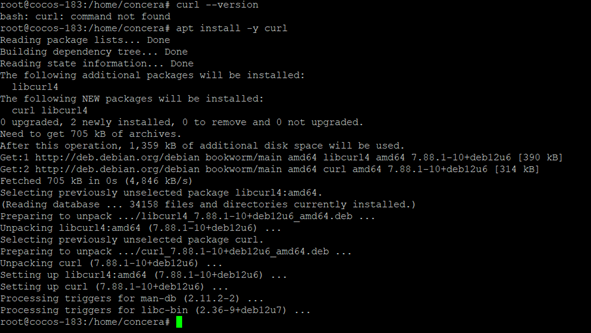
The package “curl” must be installed on the system. You can verify this by using the following command
If curl is not installed the command will result in "command not found"
If curl is not installed, use the command below to install it:
please check the installation again using curl --version. |
|


CoCoS installation
Make sure you Linux Debian installed, setup a fixed IP addres when using SSH and installed curl (if it wasn't installed yet). After all the preperations, you're ready to install CoCoS.
|
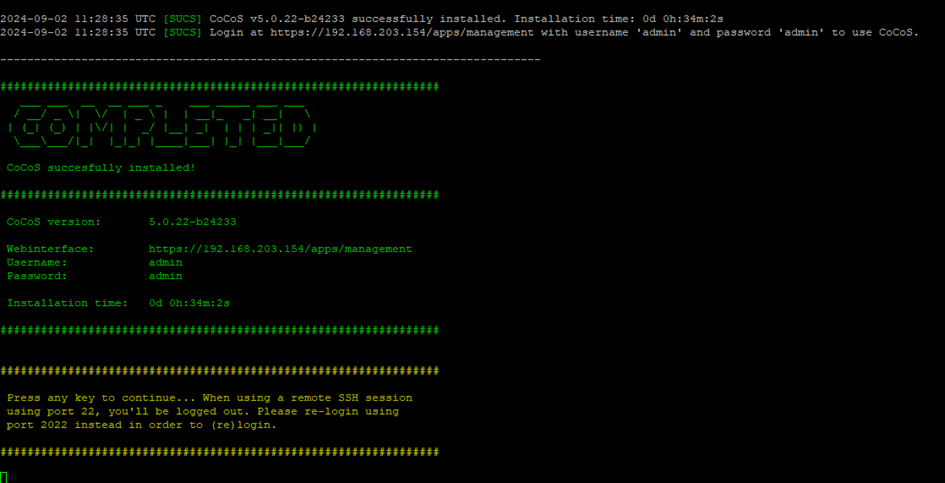
Run the installation command for CoCoS and relax for a while untill the installation is completed.
|
|
|
Note! When the server is rebooted, the default SSH port is changes by de CoCoS setup from 22 to 2022.
To change the port, change the ssh configuration.
|
|
|
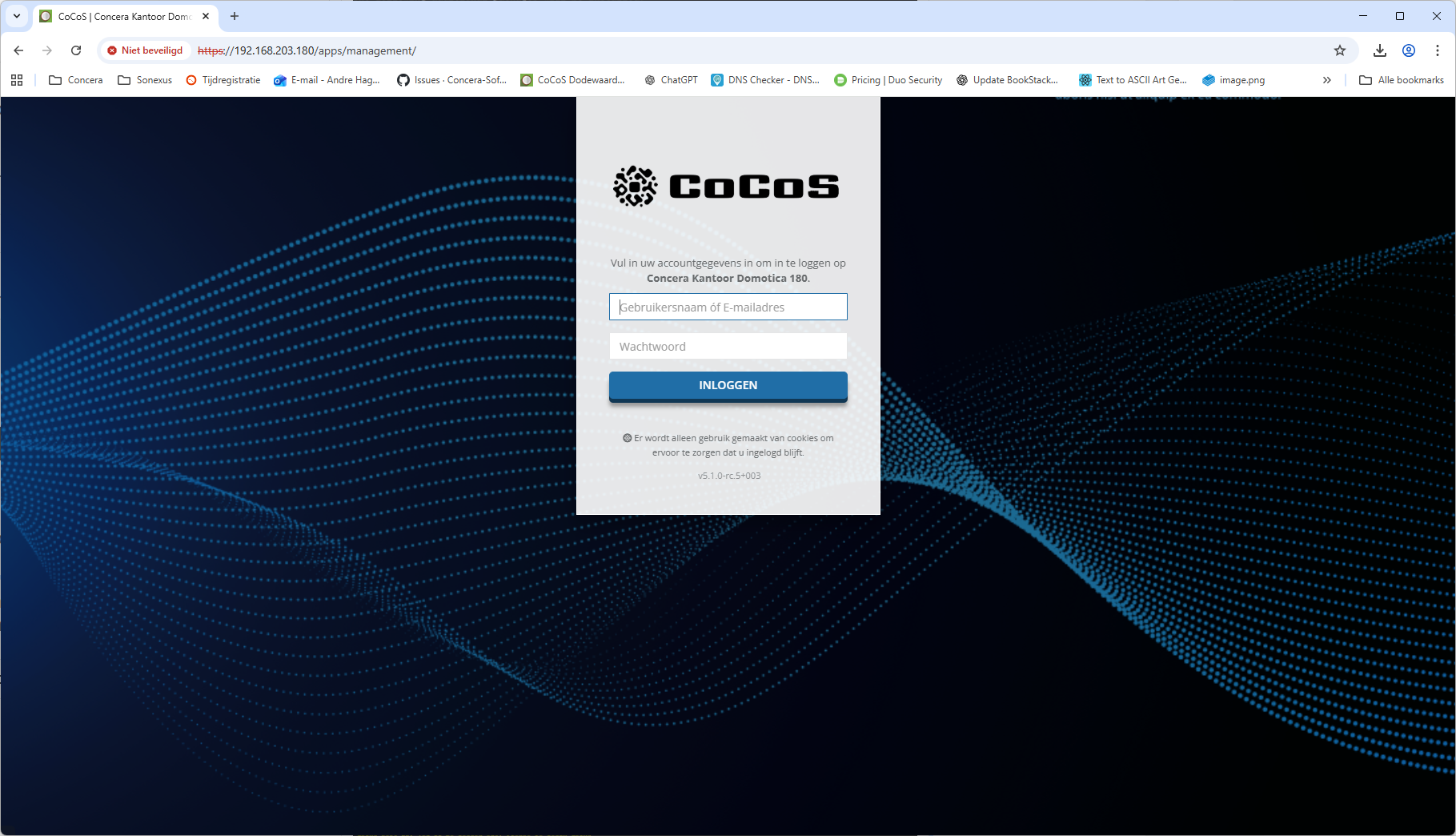
When the installation is completed, you will be able to login to CoCoS using the webinterface.
https://<your server ip address>/apps/management/
default user credentials:
user : admin pwd: admin
|
|
|
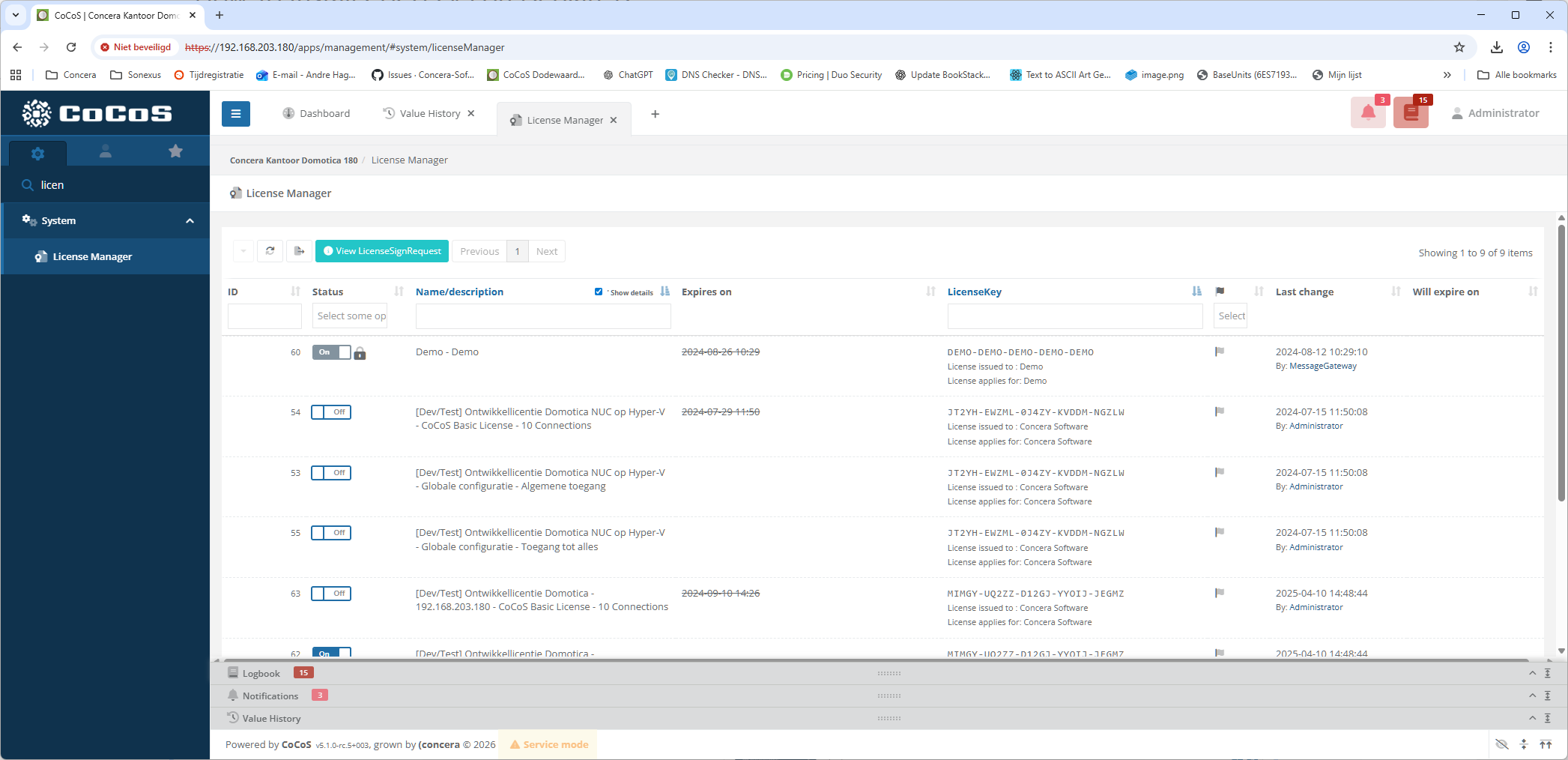
After login you can install the required software license for CoCoS. If you don't have a license, please contact your supplier. |
|
|
|
Firewall
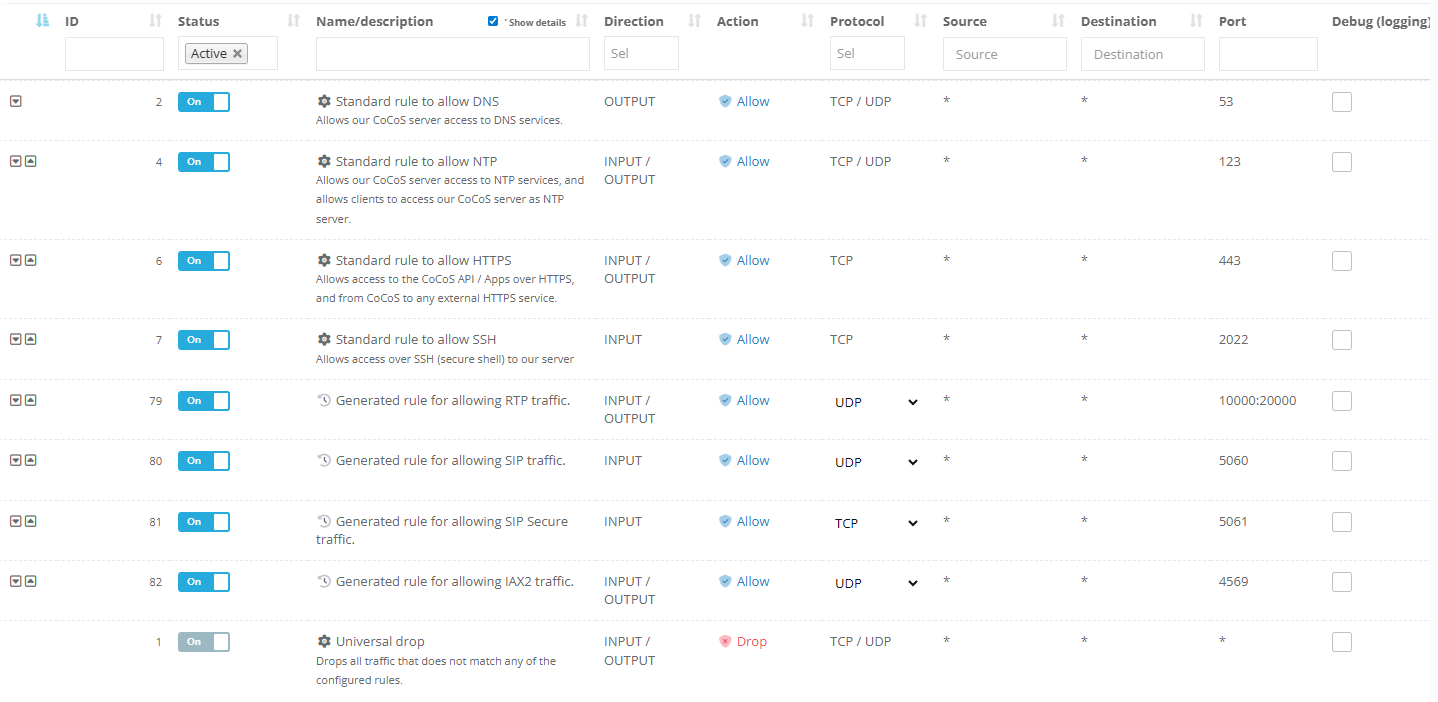
CoCoS is equipped with a firewall. The firewall rules are configured automatically when services and connectors are activated or deactivated. If CoCoS is installed behind an (external) firewall or router, please ensure that the firewall is configured to allow the server to send and receive traffic in accordance with its configuration.
In the table below you will find examples of firewall configurations used in different setups.
| Most commonly used firewall rules when CoCoS is setup as an intercom server. |
|
|
|
No comments to display
No comments to display